• Aesthetics 1: Data Validation

    Time to learn: 10 minutes

    Want to make your spreadsheet look ultra-professional and have people asking you for weeks how you did it?

    You are going to love this. Data Validation is a sweet term for dropdown lists, which we are going to be creating today!

    So, let’s start with some data to create a list of items for sale:

    Data validation1

    Once again, we will use the items we are selling to equip aspiring warrior-poets.

    Now, here are the steps for creating a drop-down list of all these items.

    Step 1:

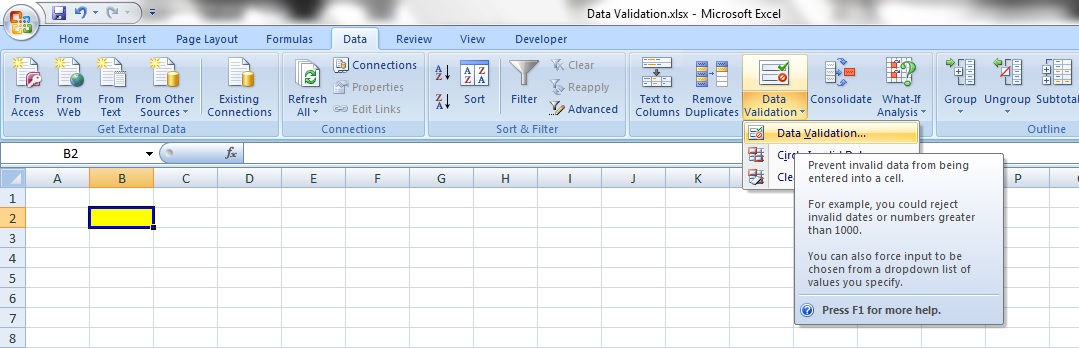
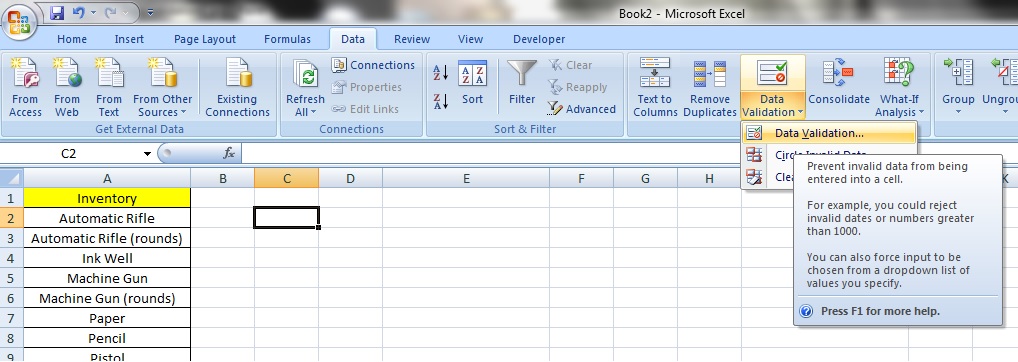
    Go to the ‘Data’ tab and select ‘Data Validation’ – a drop down arrow will show 3 options – select ‘Data Validation’ once again.

    Data validation2

    Step 2:

    Once you have selected the ‘Data Validation’ option, an option box will appear.  In the option box for ‘Data Validation’, under ‘Allow’, select ‘List’.

    Data validation3

    Step 3:

    Upon selecting the ‘List’ option the option box will expand and you will see the ‘Source’ box – this is essentially the contents you want in the dropdown box. Select the items you want.  In this case, all our items for sale, which are from cells A2 to A13.

    Notice that the title ‘Inventory’ is NOT selected.

    Now, press the ‘OK’ button.

    Data validation4

    Step 4:

    Done!

    Data validation5

    Now you will see a dropdown box and upon clicking on the dropdown arrow, the list of items has appeared.

    Easy!

    Tip:

    By now you would have noticed that the data validation list can only appear on the same sheet as the referenced list.

    What if you wanted to place the reference list in a different sheet from the data validation list?  Possible!

    Step 1:

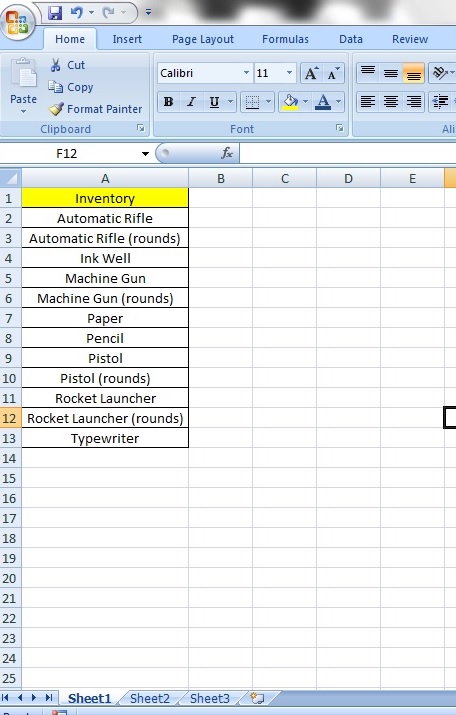
    Here we have our data list.  Notice that it exists on Sheet 1.  We will now make a data validation list on Sheet 2.

    Data validationtip1

    Step 2: 

    Select the cell range that you want to appear in our data validation list.  I’ve selected just the names of the items from cell A2 to A13.  Perform a right click and select ‘Name a Range…’ from the menu options.

    Data validationtip2

    Step 3:

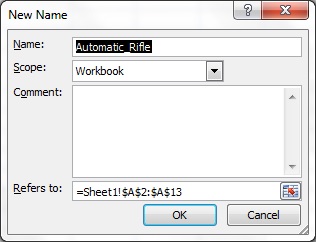
    You will see this option box appear.  In the field ‘Refers to:’, notice that the cell reference is exactly the one we selected previously?

    Leave the field ‘Scope’ as it is.  Having ‘Workbook’ in the ‘Scope’ field means that the list will apply wherever in the workbook that we refer to it.

    Data validationtip3

    Step 4:

    In the ‘Name’ field, type the text ‘List’.  This means we are naming our list of items ‘List’.

    Data validationtip4

    Step 5:

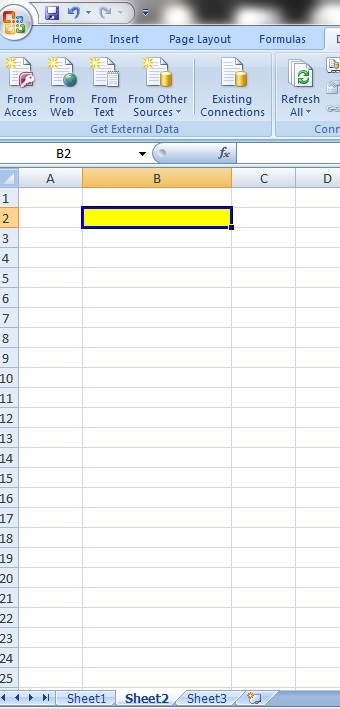
    Now, let’s move to Sheet 2.  Notice that I have coloured one of the cells yellow – that’s where we will place our data validation list.

    Data validationtip9

    Step 6:

    Go to the ‘Data’ tab and then to the ‘Data Tools’ category and select ‘Data Validation’.  Select ‘Data Validation’ again.

     Data validationtip5

    Step 7:

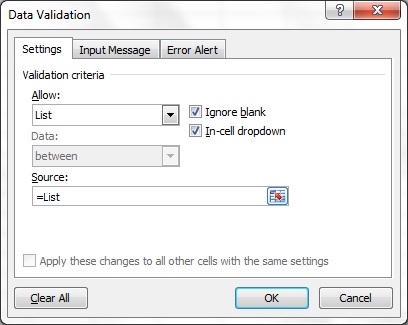
    This option box will appear.  Under the ‘Allow’ field, select ‘List’.

    Data validationtip6

    Step 8:

    Now, in the ‘Source’ field, type in =List.  Recall that we named our reference list as ‘List’.  We are referring to it here!  Now, click ‘OK’.

    Data validationtip7

    Step 9:

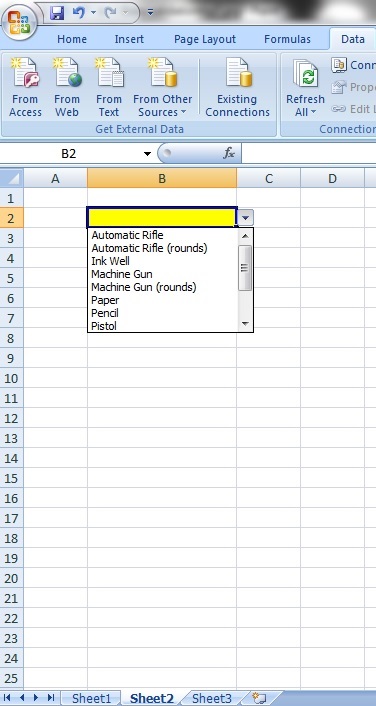
    There you have it!  A data validation list that appears in a separate list from the reference list.  This makes for a much neater appearance and a more professional feel to your spreadsheet!

    Data validationtip8

  • Data Processing 3: Charts

    Time to learn: 20 minutes

    Put an awesome look on your data and make great looking charts in minutes!

    Charts are easy.

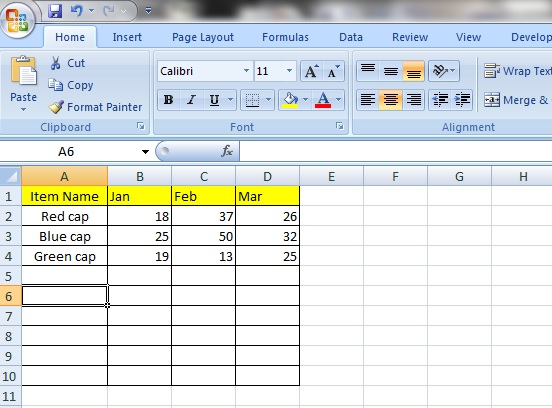
    Let’s start with some data.  Here we have a list of caps in different colours and how many have been sold in January, February and March.

    Now, you see that the list looks like it should be longer than it is now.  More on that later.

    Step 1:

    Graphs1

    Select the ‘Insert’ tab and you will see a selection of chart types above the section called ‘Charts’.

    Graphs2

    Let’s select a ‘Line’ chart.

    Step 2:

    Graphs3

    Now, we will select a ‘2-D Line’ chart.  Let’s go with the first one.

    Step 3:

    A box will now appear.

    Graphs4

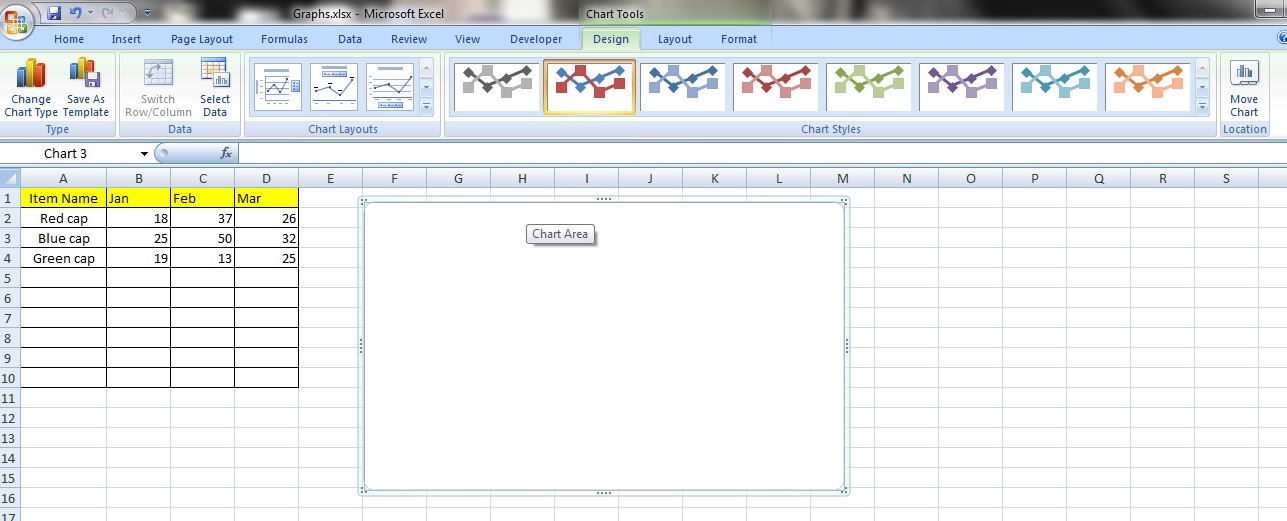
    Notice that the ‘Design’ tab contains many of the options that pertain to your chart.  The other tab that affects your chart is the ‘Layout’ tab just to the right of your ‘Design’ tab. More on that later.

    Step 4: 

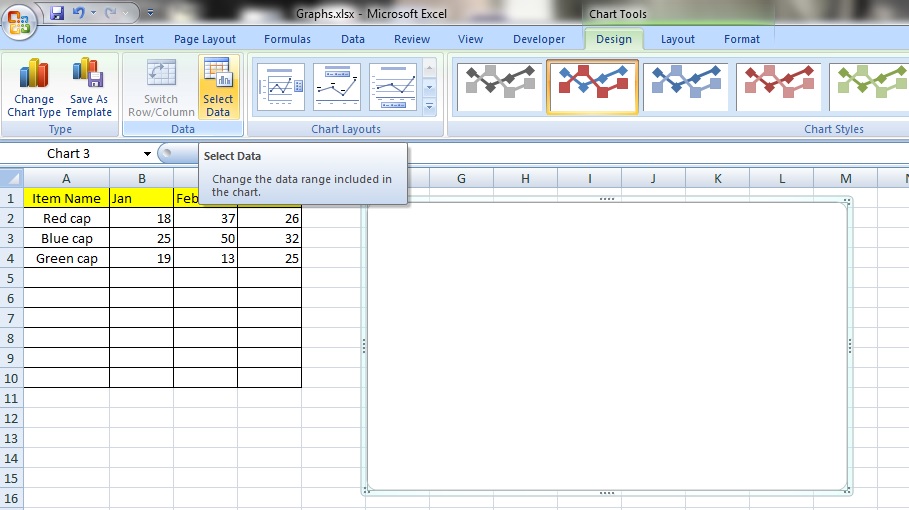
    Now, click on the button ‘Design’ tab and click on ‘Select Data’ in the ‘Data’ category.

    Graphs5

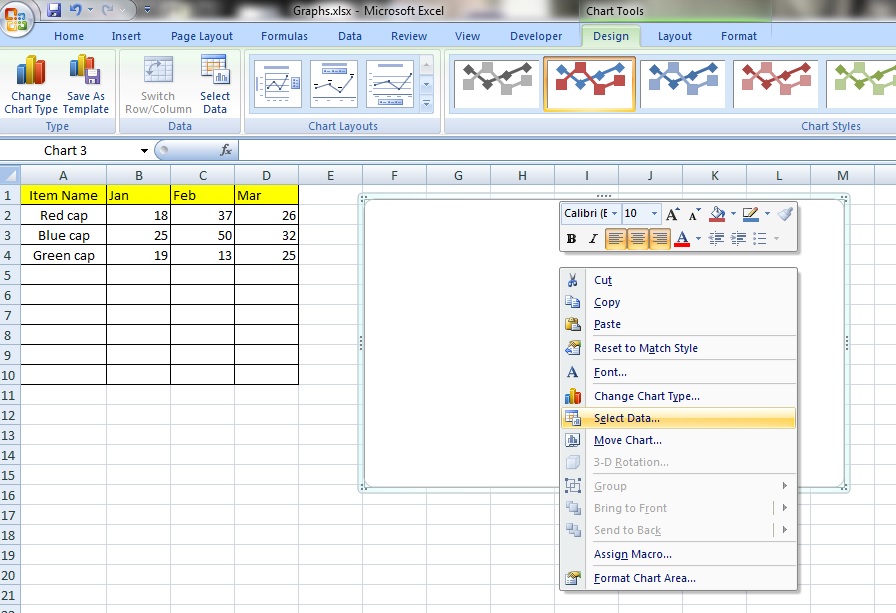
    You can also just perform a right click while within the chart box and select ‘Select Data’.

    Graphs6

    Step 5:

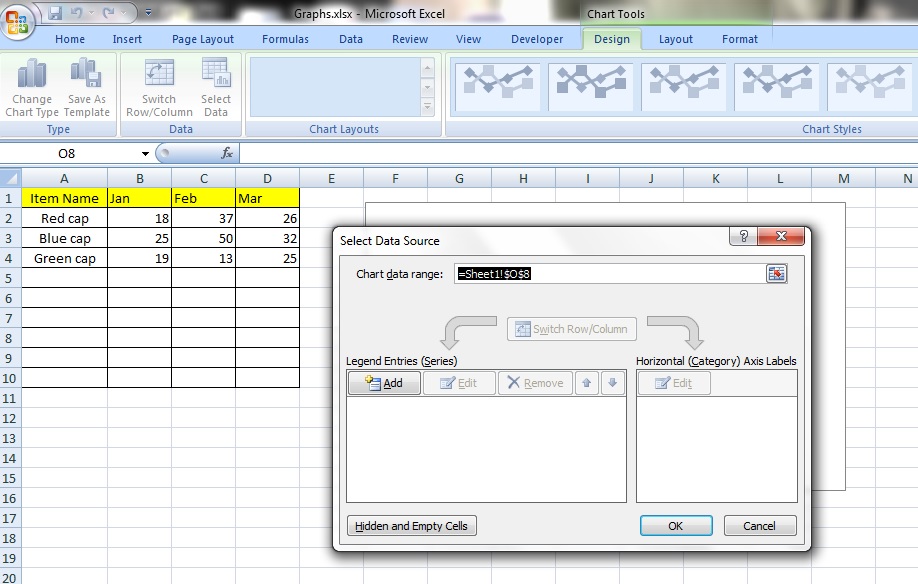
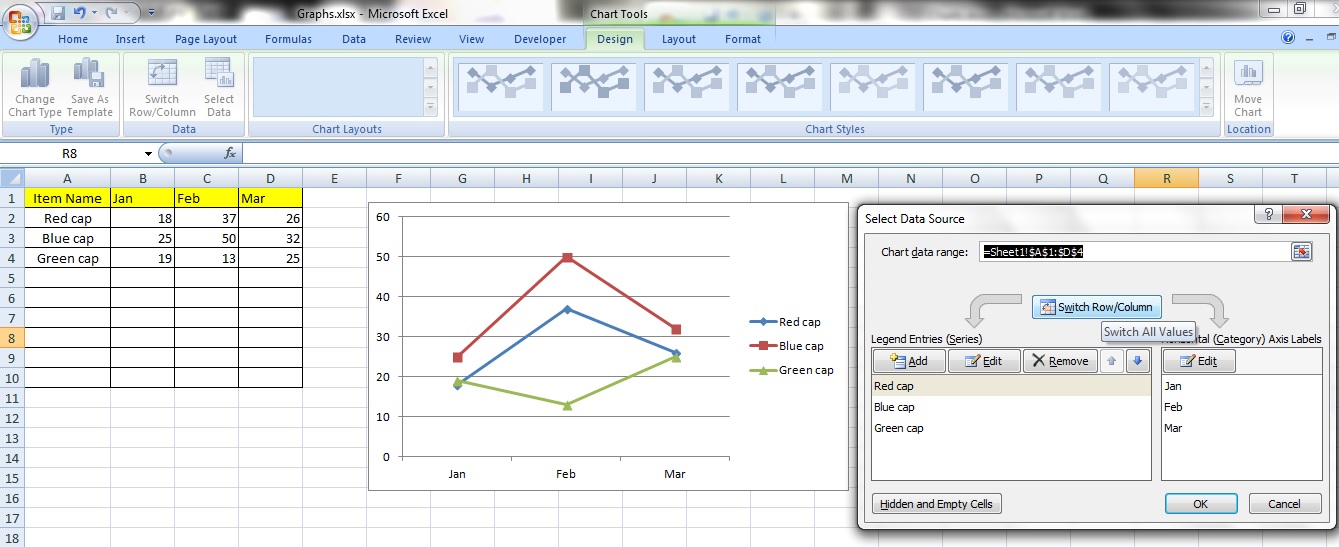
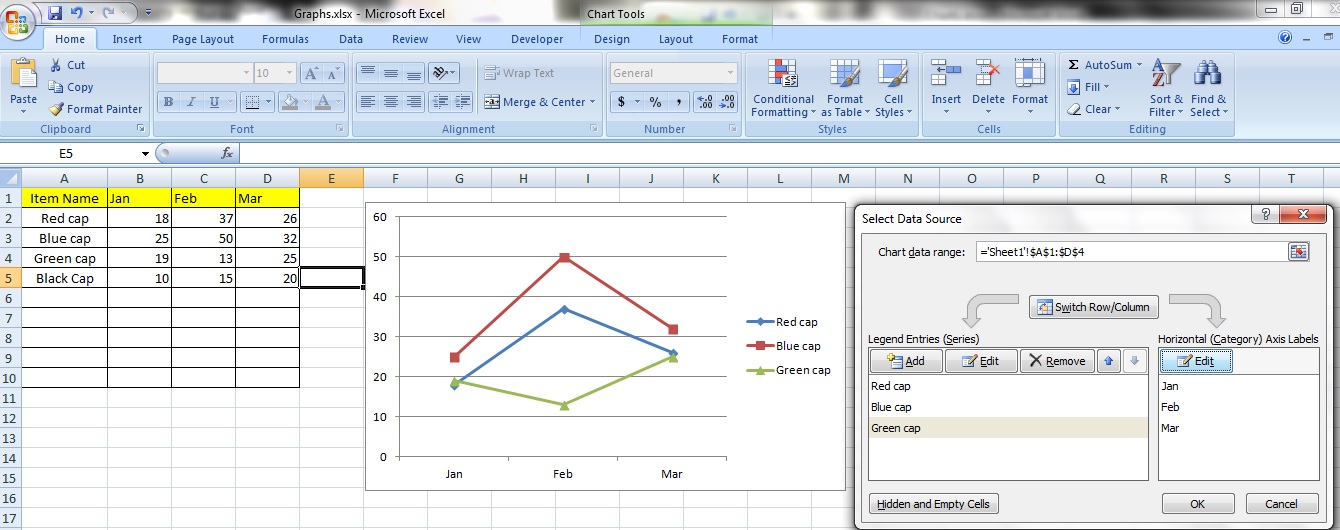
    Well, whichever method you choose, once selected, you will see this option box appear.  In the field named ‘Chart data range:’, you can enter the cell reference that contains your data by manually typing it in or clicking and dragging to select the whole range.  Remember to include the titles of your data in your selection.  Click ‘OK’.

    Graphs7

    Here, we’ve selected cell reference: =Sheet1!$A$1:$D$4.  Notice that it includes the titles from ‘Item Name’ to ‘Mar’ and includes the rows with ‘Red Cap’ to ‘Green Cap’.

    Graphs8

    Step 6:

    A chart has now automatically been created!

    Graphs9

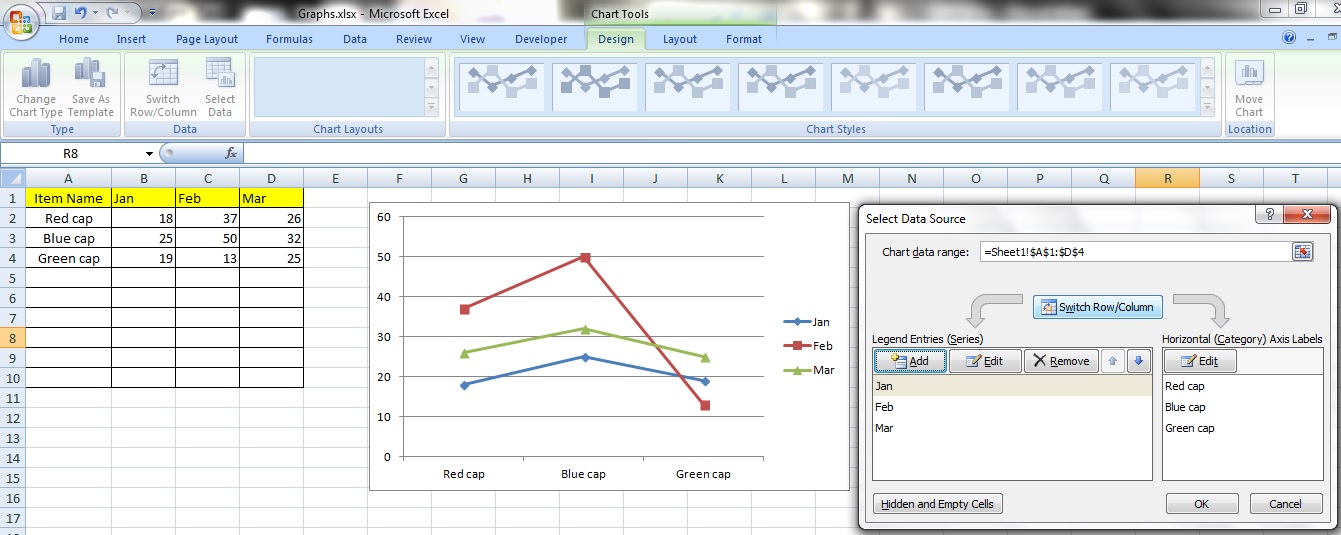
    You can change the orientation of the chart by clicking on the button ‘Switch Row/Column’.

    Graphs10

    Notice that the axes of the chart are either ‘Jan’ to ‘Mar’ or ‘Red Cap’ to ‘Green Cap’?  Nice.

    Adding a new series

    Step 1:

    Adding series

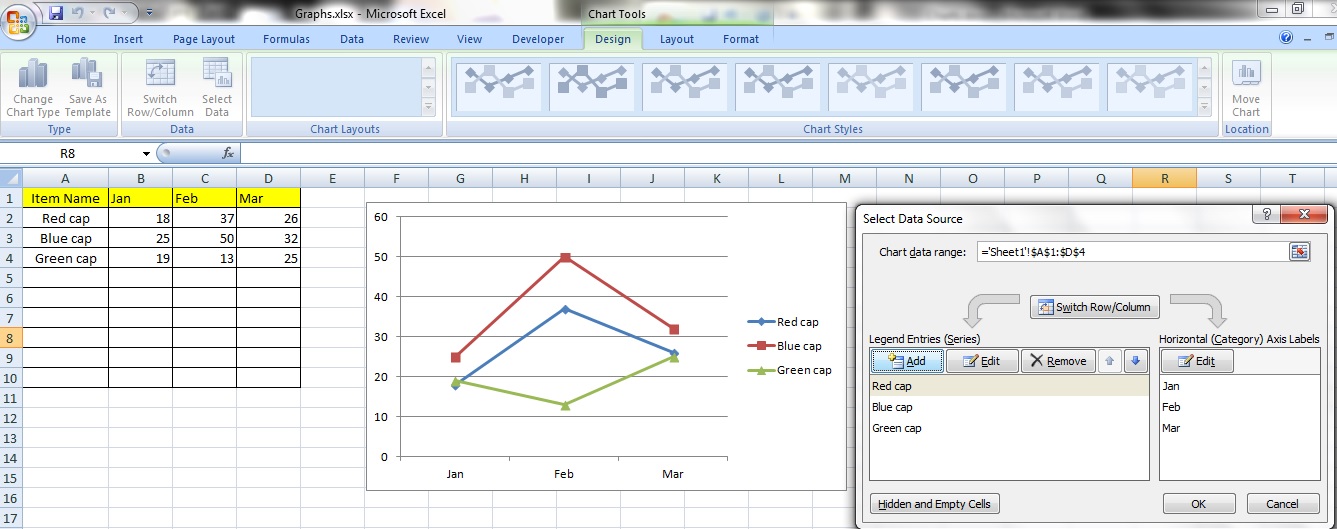
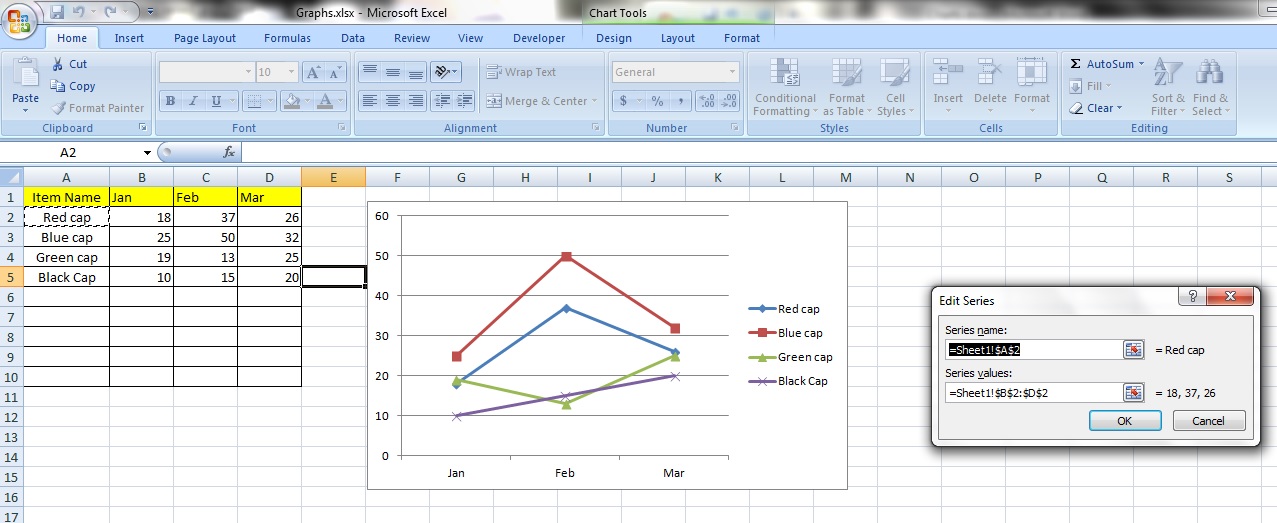
    You can add an additional item to the chart by clicking on the ‘Add’ button in the ‘Select Data’ option box.

    Step 2:

    Adding series2

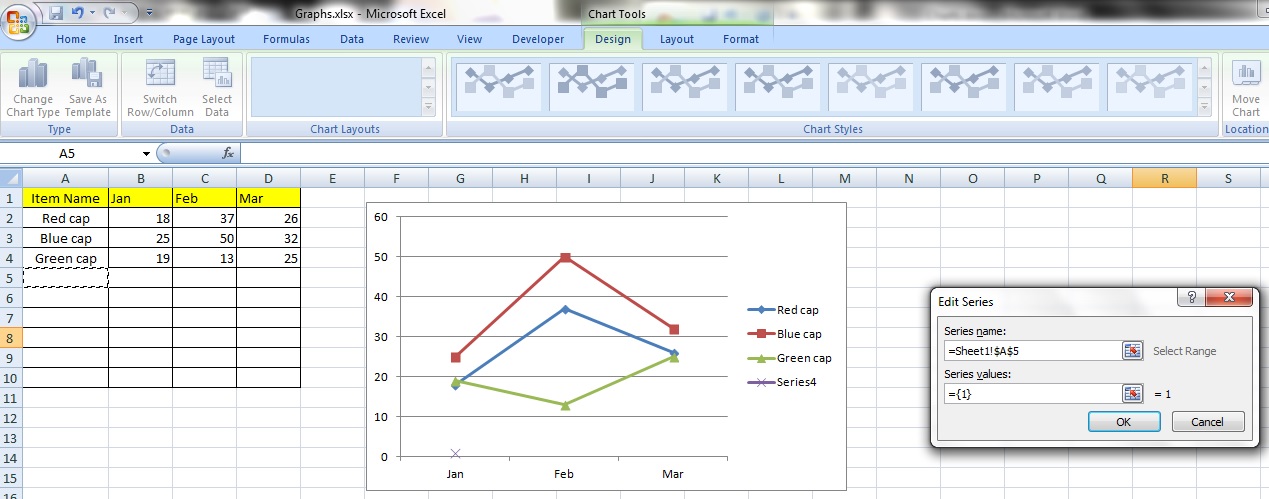
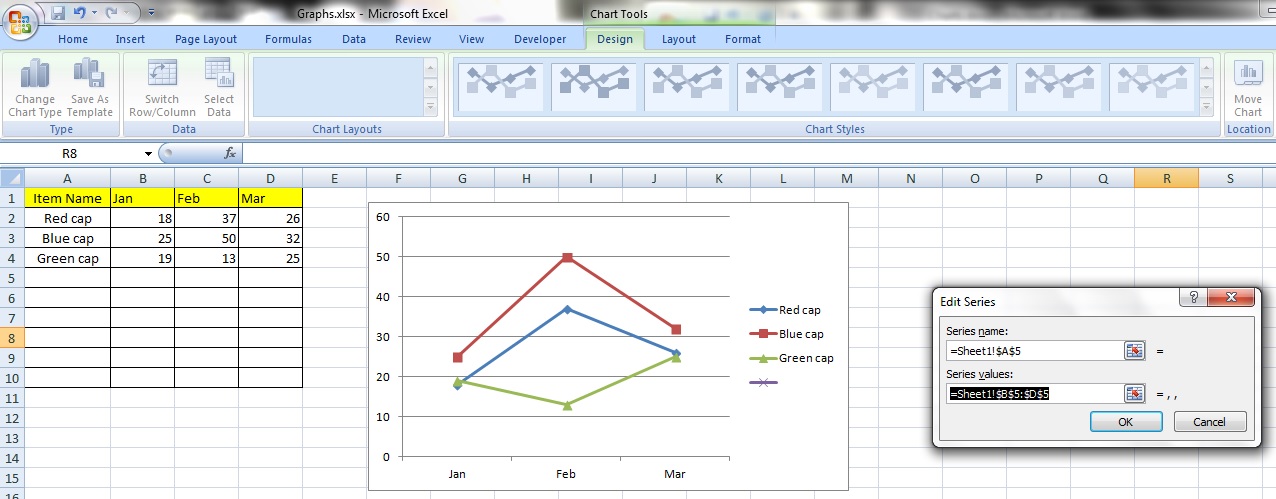
    You will see an option box appear called ‘Edit Series’.  Under ‘Series Name’ select cell A5 or you can just click on the cell, which would cause this reference to appear ‘=Sheet1!$A$5’.  Now, we’ve selected that cell because it is in the same column as all the other names of our items.

    Step 3:

    Adding series3

    Under the title ‘Series Values’ enter the cell reference for cells B5 to D5.  The reference should look like this ‘=Sheet1!$B$5:$D$5’.  You can just click and drag to select the cell range too.

    Step 4:

    Adding series4

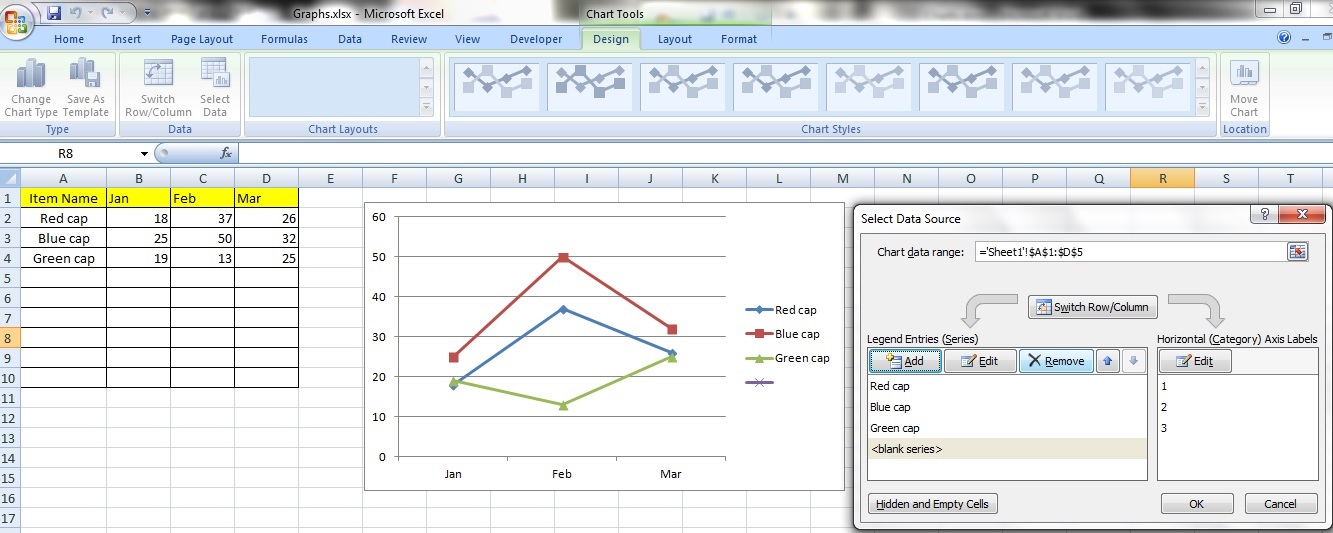
    Now, the ‘Legend Entries (Series)’ in the ‘Select Data Source’ option box should include something called <blank series>.   Let’s do something about that!  Click on the ‘OK’ button to close the option box.

    Step 5:

    Adding series5

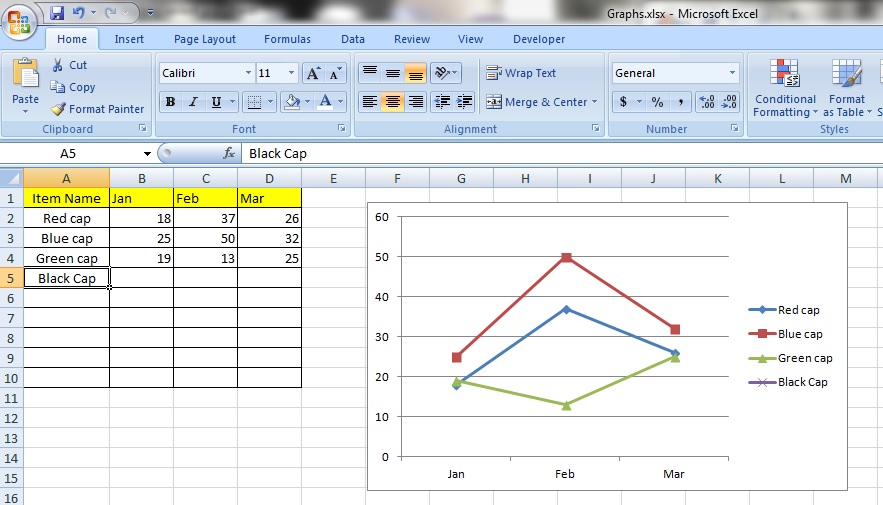
    Select cell A5 and enter the text ‘Black Cap’.  Notice that a new series called ‘Black Cap’ has appeared on our chart?

    Step 6:

    Adding series6

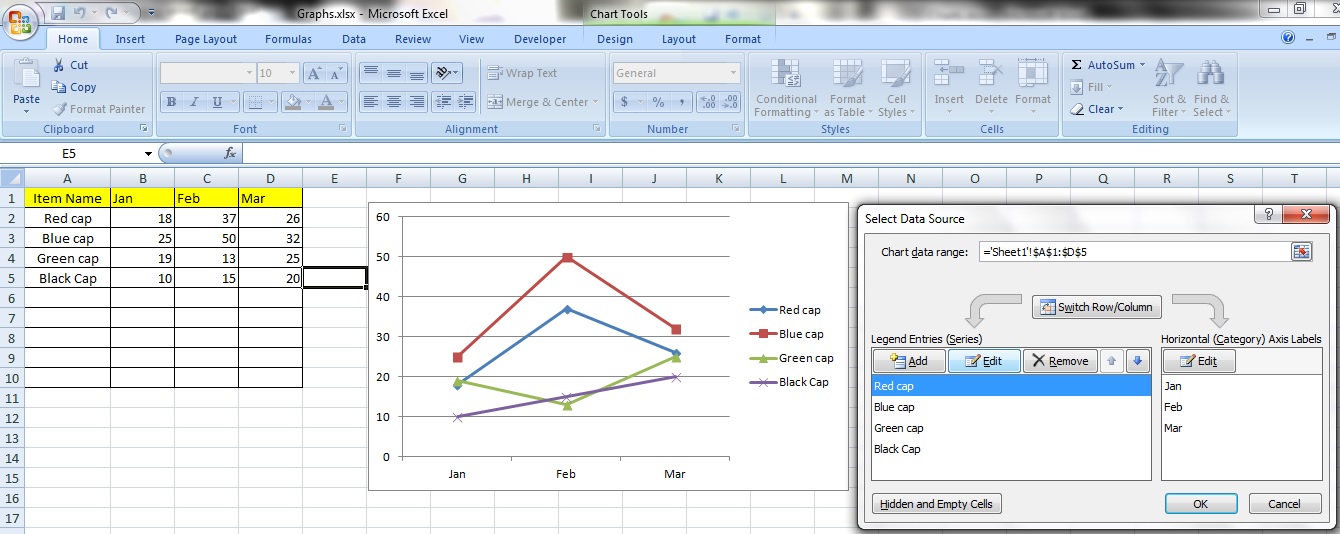
    Now, enter the number 10 in cell B5, 15 in C5 and 20 in D5.  Notice that the chart responds immediately to our data input?  Neat.  So, that’s how you add a series to a chart!

    Editing a Series

    Step 1:

    Editing series1

    You can also edit the data in a series by going back to the ‘Select Data Source’ option box, selecting the series you want to change and clicking on ‘Edit Series’.

    Step 2:

    Editing series2

    You will see an option box titled ‘Edit Series’.  In the field ‘Series Name’ you can either manually enter the cell reference the new name is in or just click on it.

    In the field ‘Series Values’ you can enter manually the cell reference the new series’ values are contained in or you can click and drag to select them.

    Notice the current values of the cells appear next to this box.  This is similar to Step 2 and 3 when ‘Adding a new series’.

    Removing a series

    Removing series

    You can remove a series by clicking on the ‘Remove’ button.  Notice that while the chart has been affected and the series disappears, the table still retains the data.

    Changing Axis Labels

    Step 1:

    Changing axis labels

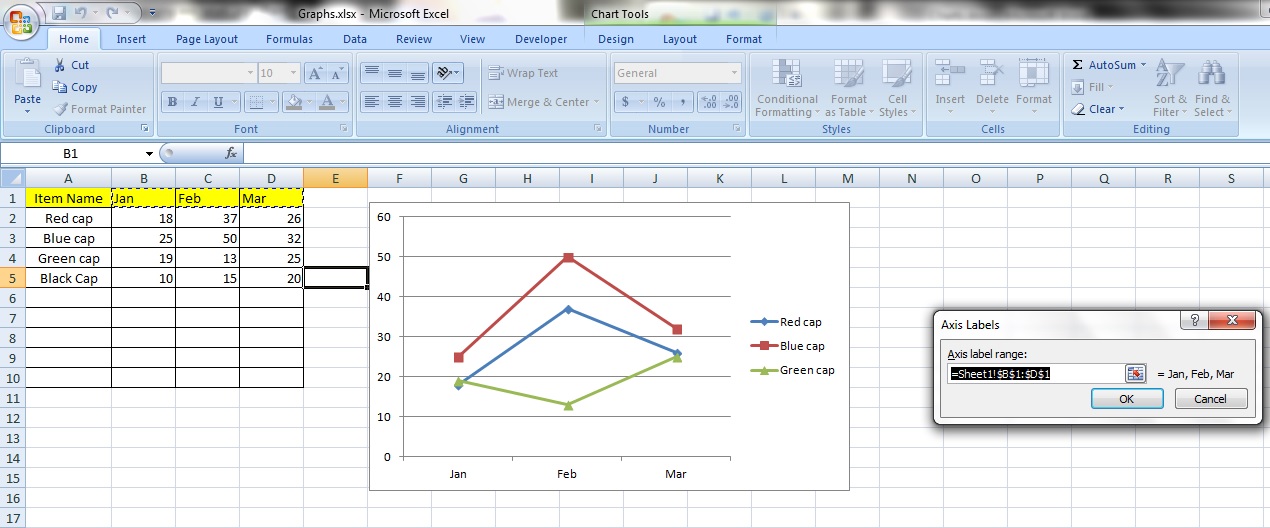
    You can change the labels of the axes by clicking on the ‘Edit’ button under ‘Horizontal (Category) Axis Labels’.

    Step 2:

    Changing axis labels2

    The option box titled ‘Axis label range:’ will appear and you can select a new range of axis labels in the field box. If you want to, that is.  Notice the current axis labels appear next to the field box.

    Tips:

    Design1

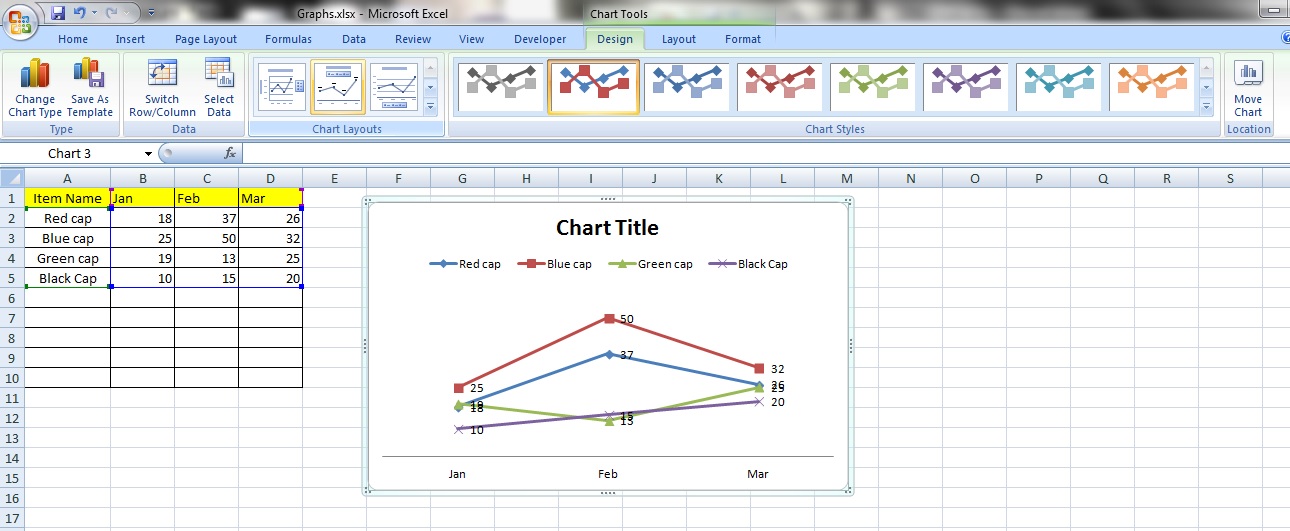
    In the ‘Design’ tab, you can change the layout and style of the chart in the categories ’Chart Layouts’ and ‘Chart Styles’.  Purely aesthetic.

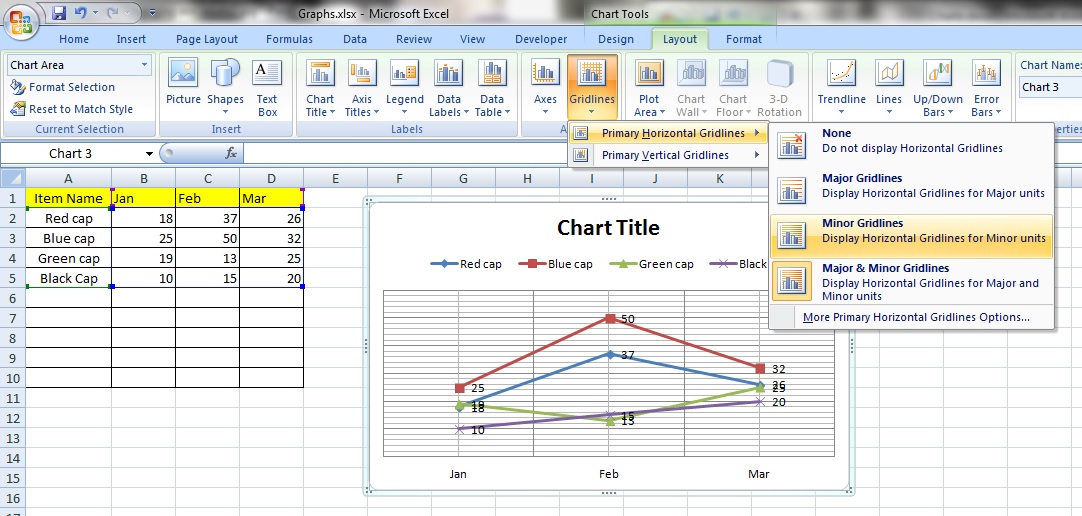
    There are host of other frills you can add to your chart in the ‘Layout’ tab.

    Design

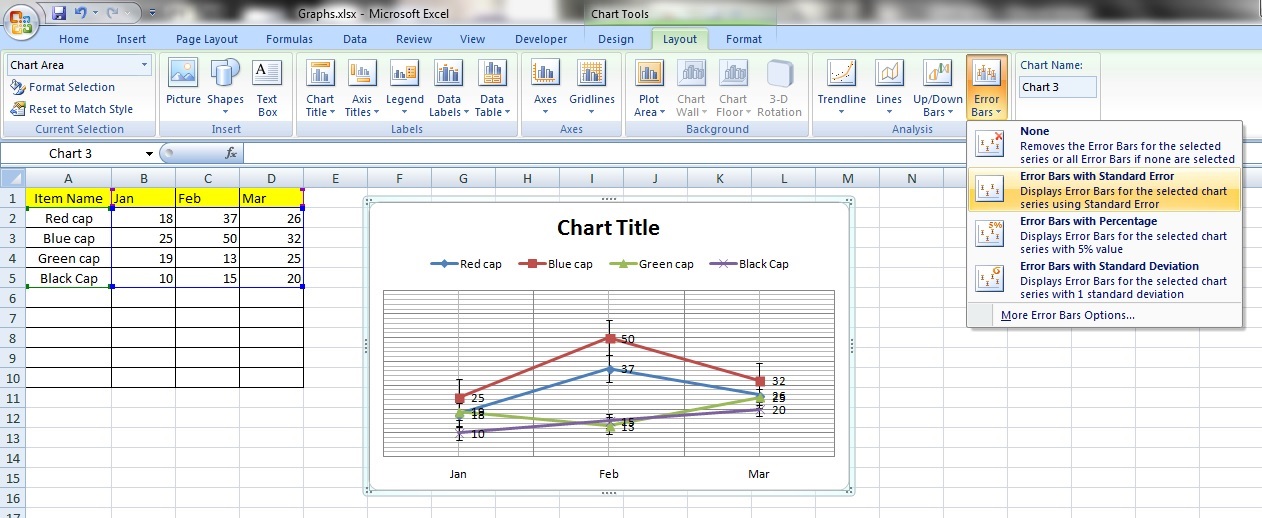
    In this case, we have added gridlines and error bars to the chart readings.

    Layout2

    Makes for a more professional looking chart.

  • Basics 5: Paste Special

    Time to learn: 20 minutes

    The Paste Special function allows you to easily transfer data, formulas, formats or even perform mathematical operations just by using good old copy and paste!

    This aspect of Excel seldom gets much attention as most do not understand how it works.  That is going to change today.

    Remember that you always start with some data you need to copy first and then proceed to paste it in another location in a special format that you decide on – that is the principle of the Paste Special function.

    Let’s start with some data.

    Here we have 12 colleagues grouped into 3 teams and their call records, including how many deals they have closed.

    paste1

    Mathematical Operations

    Step 1:

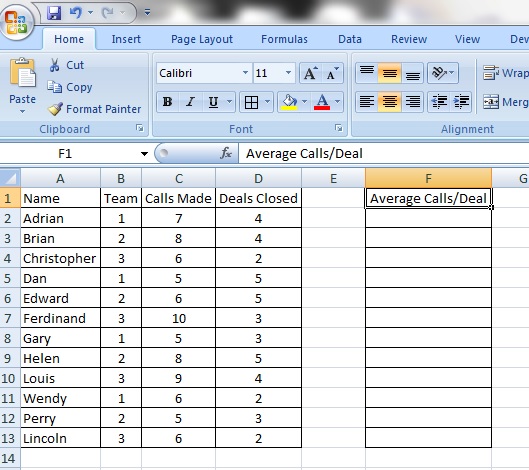
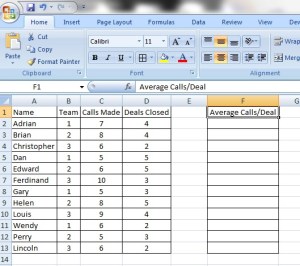
    Let’s find out how many calls on average it takes to close a deal for each of them.  Let’s create a column called ‘Average Calls/Deal’.
    paste2

    Step 2:

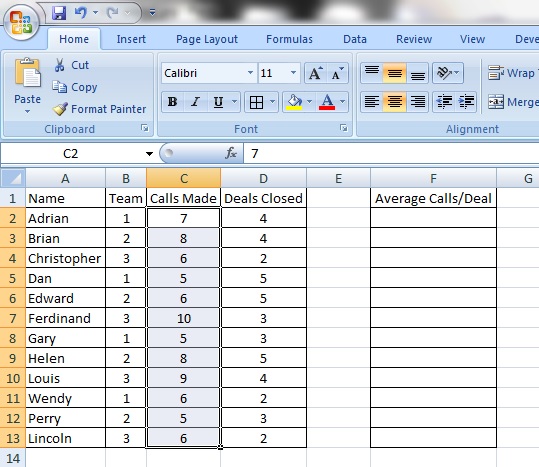
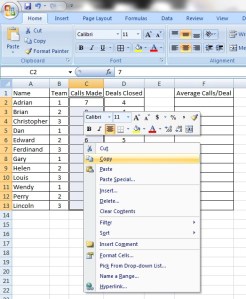
    Highlight cells C2 to C13 – this cell reference contains the list of the number of calls made per person.

    paste3

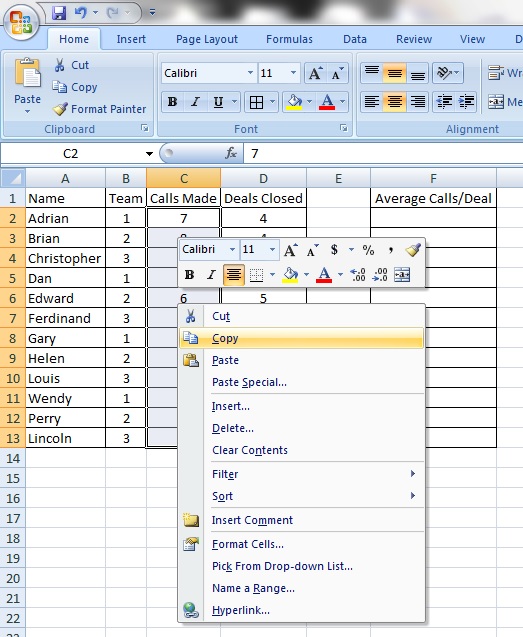
    Now, with your cursor still within the cell reference C2 to C13, perform a right click and click on ‘Copy’.  You can also use the Ctrl + C shortcut.
    paste4

    You should immediately see a line of running dashes around your selection – this is Excel’s way of saying that the cells have been selected for copying.

    Step 3:
    paste5

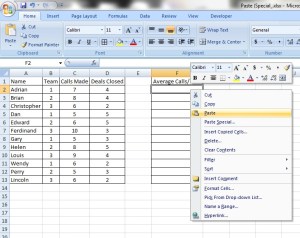
    Paste the selection onto the ‘Average Calls/Deal’ column by right clicking on cell F2 (the first cell of the column ‘Average Calls/Deal’) and selecting ‘Paste’.  You can also use the Ctrl + V shortcut.

    Step 4:

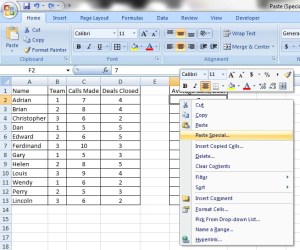
    Copy the cells D2 to D13 – this cell reference contains the list of deals closed by each person.  With your cursor still within the cell reference D2 to D13, perform a right click and click on ‘Copy’.  You can also use the Ctrl + C shortcut.
    paste6

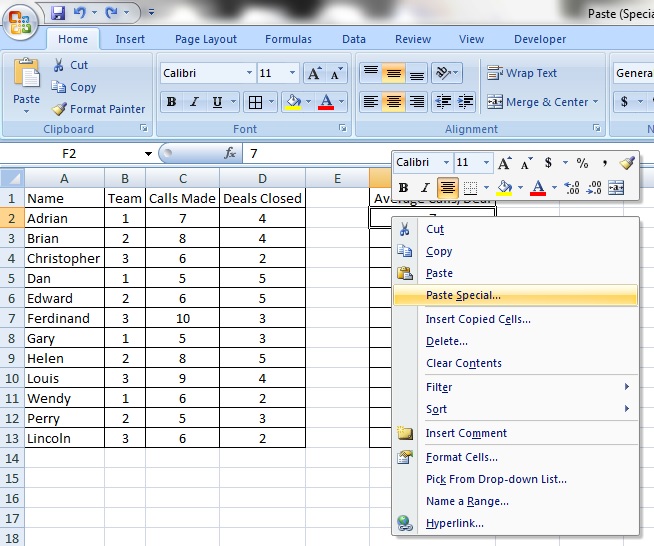
    Ensuring that the cells in D2 to D13 are still selected, right click on the cell F2 and select ‘Paste Special’.

    Step 5:

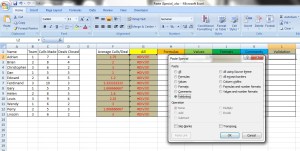
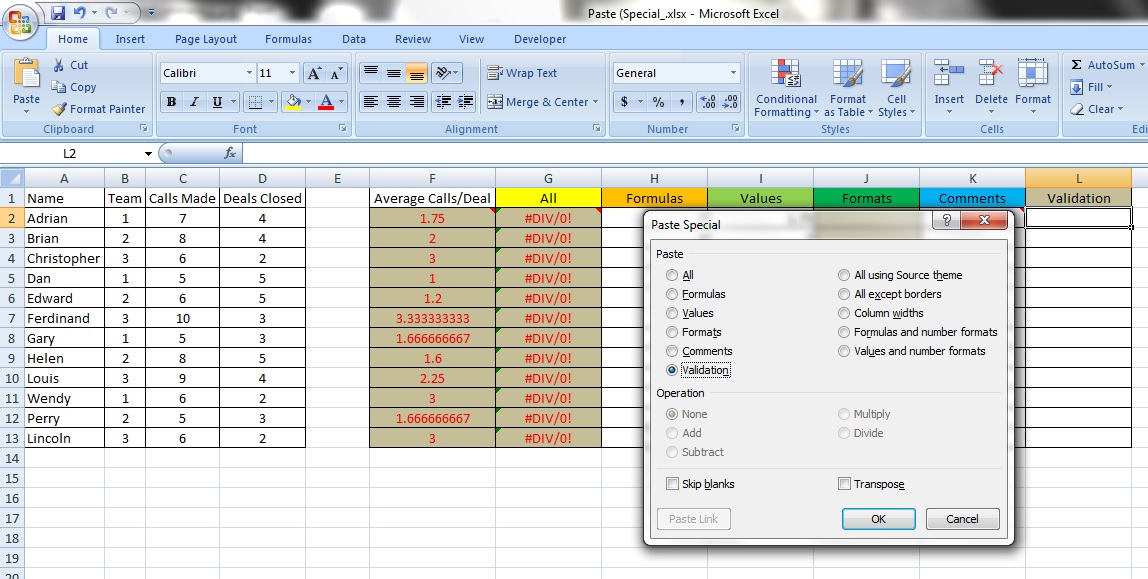
    You will see an option box like this.

    paste7

    Under ‘Operation’, click on ‘Divide’ and click ‘OK’.
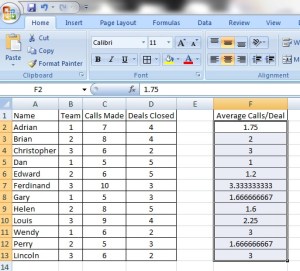
    paste8

    Now, you will see that all your colleagues’ call numbers have been divided by the number of deals they have closed per person.

    Tip:

    You would have noticed in the option box earlier under ‘Operation’ that there are other mathematical functions like ‘Add’, ‘Subtract’ and ‘Multiply’.  That is exactly what it does.  By copying and then using the ‘Paste Special’ function, you can add, subtract, multiply or divide a selection of numbers in a cell destination by the values you have copied instantly.

    Paste Special

    This section deals with the more interesting aspects of ‘Paste Special’.

    paste7

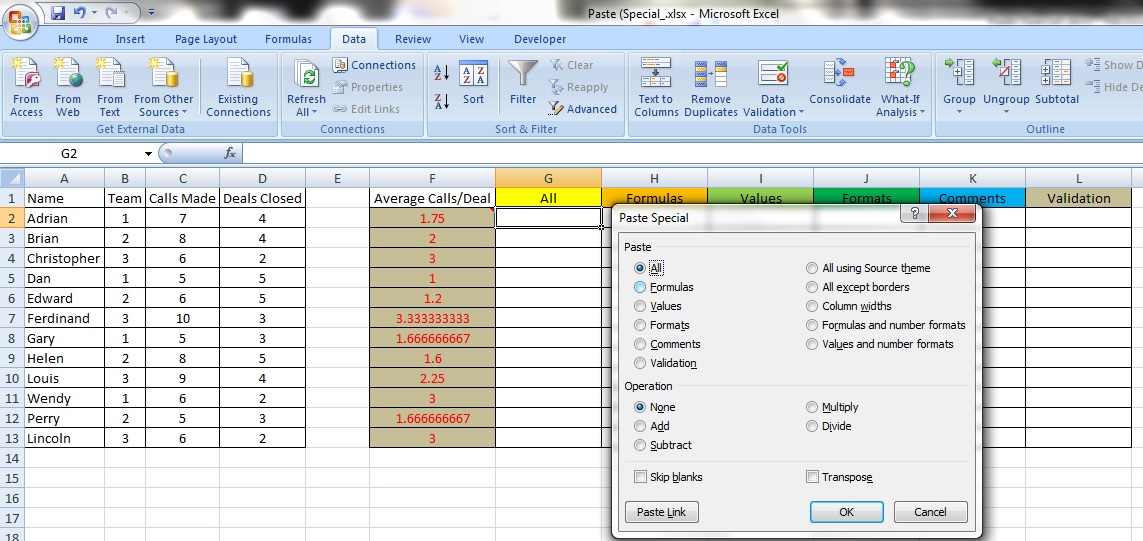
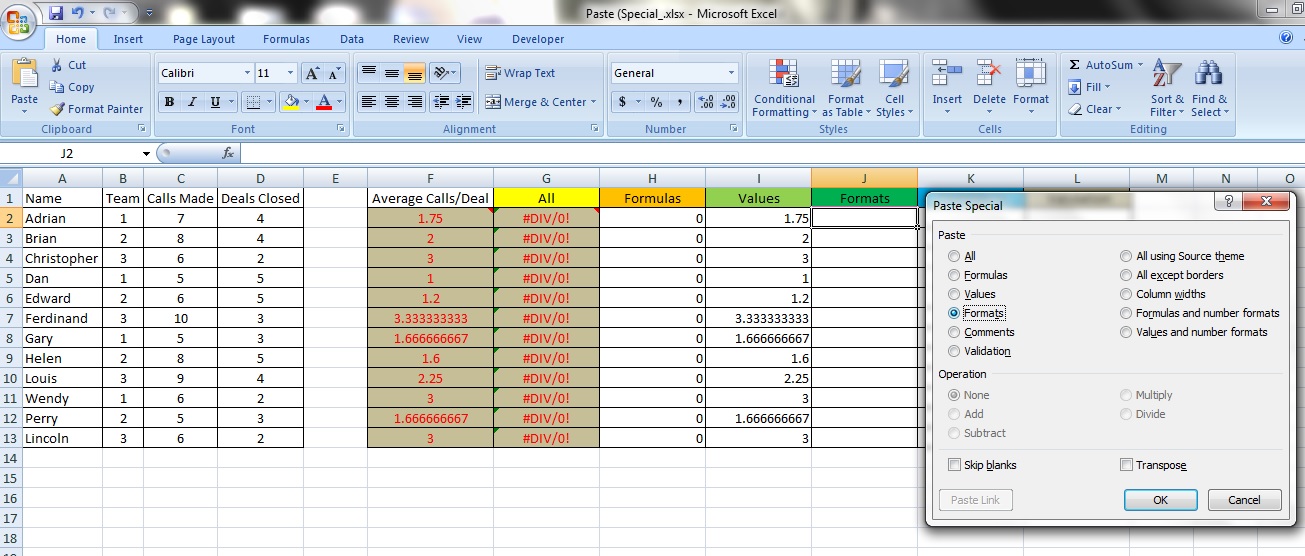
    Notice in the ‘Paste Special’ option box under ‘Paste’, the 6 options – ‘All’, ‘Formulas’, ‘Values’, ‘Formats’, ‘Comments’ and ’Validation’.

    I’ve created column titles for each one of these options to show you how they work.
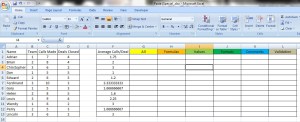
    paste9

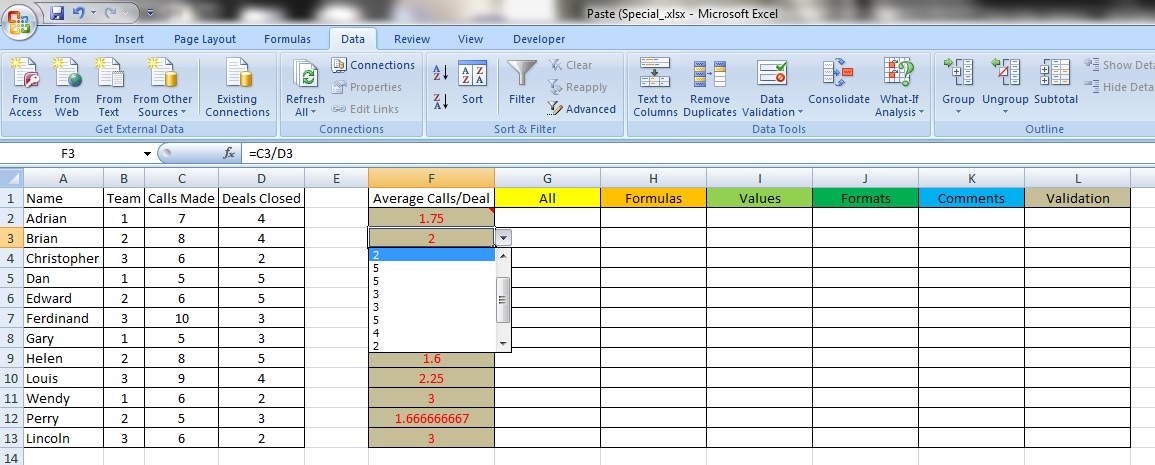
    Now, I’ve done a few things with the column ‘Average Calls/Deal’.

    • Notice that when the cells are selected, they have a formula ‘=C2/D2’ – all of them have that, referencing cells in the ‘Calls Made’ and ‘Deals Closed’ columns and dividing the ‘Calls Made’ by the ‘Deals Closed’.
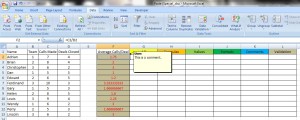
    paste10

    • Notice that the cell and text colour have been changed.
    • There is also a comment in cell F2.

    paste11

    You can insert comments into cells by right clicking on the cell and selecting ‘Insert Comment’. Comments are free text boxes that you can use to contain information about a cell without affecting its contents.

    • In cell F3, I have also created a data validation list.

    paste12

    You can get more information on how to do this under Aesthetics 1: Dropdown Lists (Data Validation). This is just to illustrate the Paste Special function, though.

    Step 1:

    To illustrate what the 6 options, ‘All’, ‘Formulas’, ‘Values’, ‘Formats’, ‘Comments’ and ’Validation’ do, we will copy the whole cell selection from F2 to F13 and copy and Paste Special on each column, using one of the Paste functions.

    All
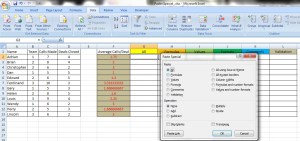
    pasteAll

    Notice that every aspect has been copied over – formulas, formats, the comment and the data validation.

    pasteAll2

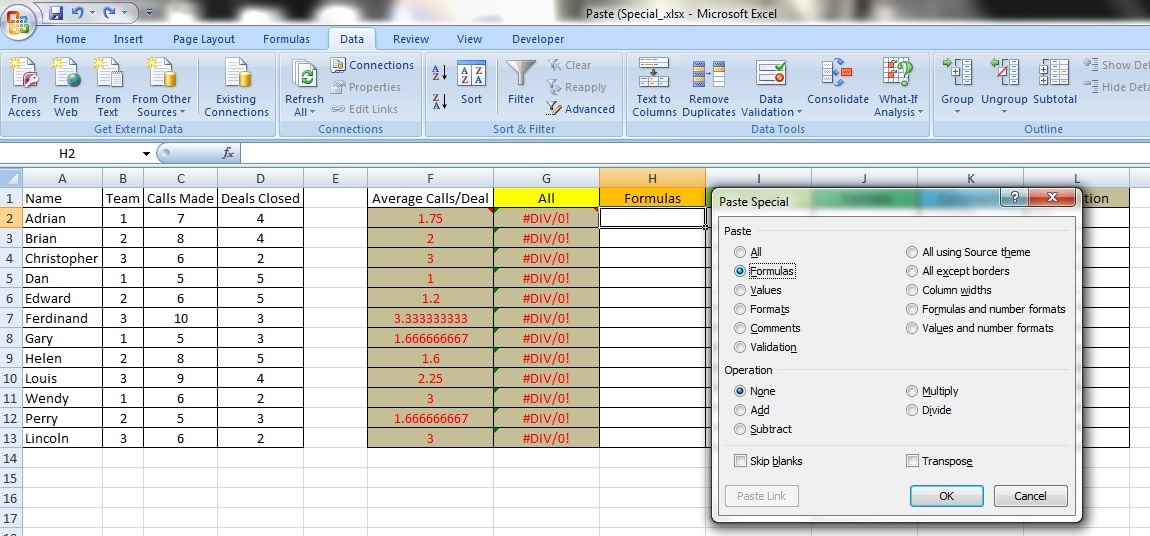
    So what’s with the error messages?

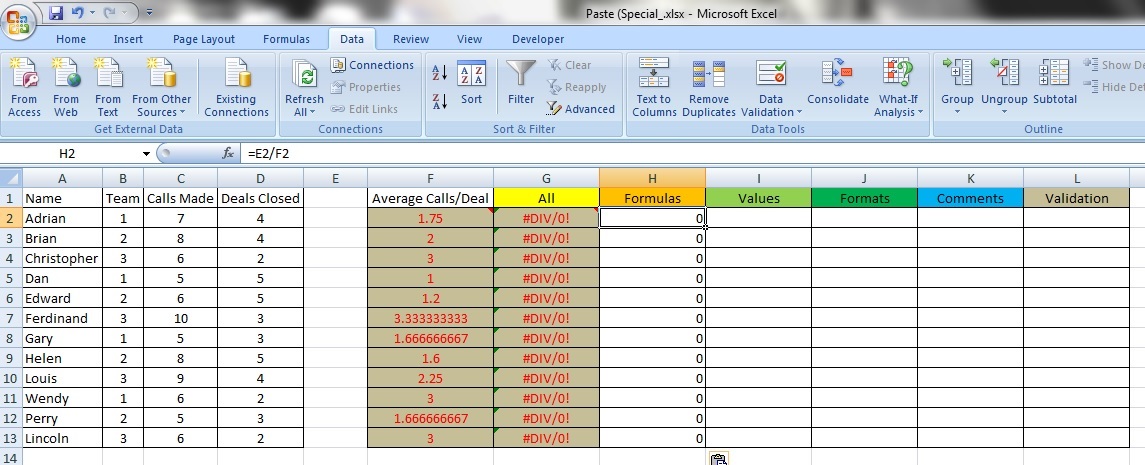
    Notice that when we copied over the cells F2 to F13, their contents contained the formulas ‘=C2/D2’?  Now, the formula has moved 1 complete column to the right to cell ‘=D2/E2’ or ’=D3/E3’.

    Why?

    Because when we did a copy and Paste Special ‘All’ 1 column to the right, all the cell references moved as well in exactly the same way.

    This is part of how Excel ‘intelligently’ tries to assist us.  Don’t worry about this, though, as we expected this to occur.

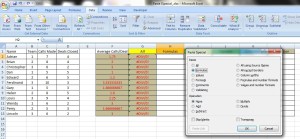
    Formulas
    pasteFormulas1

    Notice that only the formulas within each cell have been copied.  Notice also that the formulas now indicate ‘=E2/F2’.

    pasteFormulas2

    As with Paste Special ‘All’, whenever formulas are copied, they are moved exactly the same number of rows or columns and in the same direction.

    Values

    pasteValues1

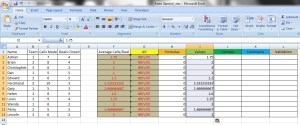
    Now, notice that only the values in the cells have been copied over?
    pasteValues2

    There are no formulas, formatting, comments or data validation lists.  This is for when you just want the results of the cells copied, nothing more.

    Formats
    PasteFormats1

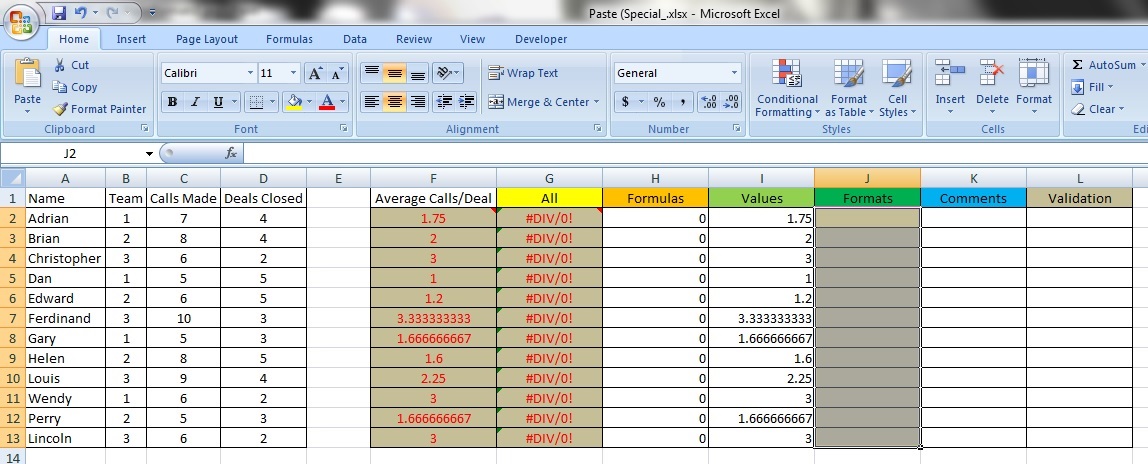
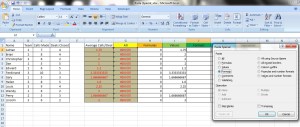
    Observe that only the aesthetic formatting has been copied.
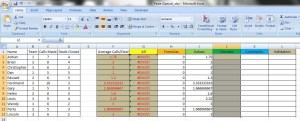
    PasteFormats2

    The cells are grey and if you type in any text, they will be red, like the original list.  If you have applied Conditional Formatting to the cells, they will be carried over as well.

    Comments

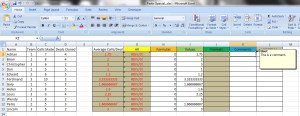
    pasteComments1

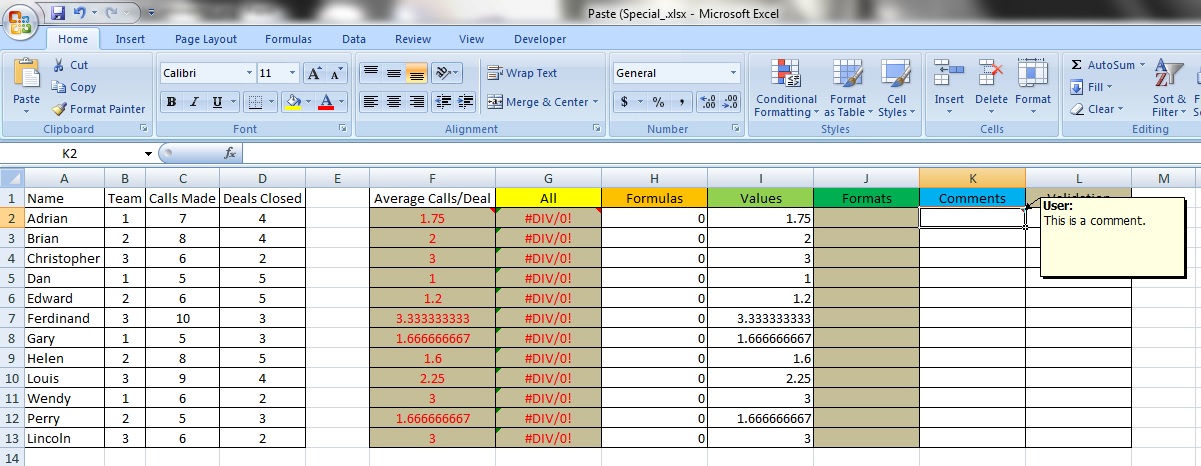
    Notice that only the comment has been copied over.
    pasteComments2

    Nothing more.

    Validation

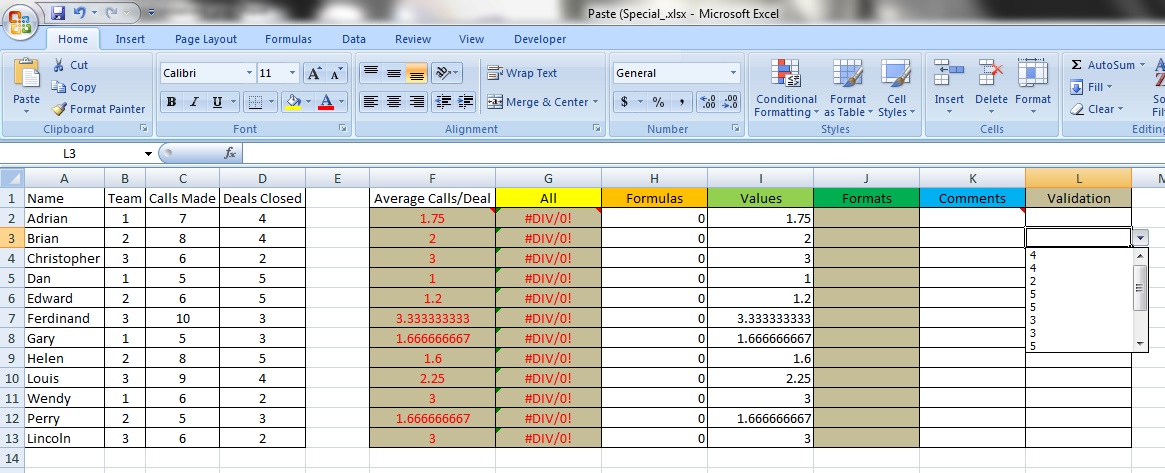
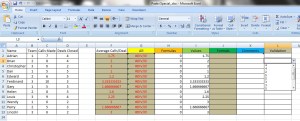
    pasteValidation1

    Notice that only the data validation list has been copied over.
    pasteValidation2

    Nothing more.

    The remaining options are variations of those we have looked at.

    paste7

    All using Source Theme copies the theme of your cells, should you have applied one.
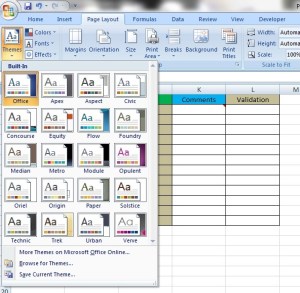
    PasteTheme

    You can access the Themes function by going to the ‘Page Layout’ tab and selecting ‘Themes’.  This changes the overall look of your Excel spreadsheets.

    All except borders is similar to All, except that the borders are not copied.

    Column widths only copies the exact width of the original cells – more aesthetic than anything.

    Formulas and number formats – copies only the formulas (remember that the cell references move accordingly) and the formatting of the contents of the cells.

    Values and number formats – copies only the value of the contents of the cell; not its formula, and the formatting of the contents of the cells.



  • Functions 9: VLOOKUP

    Time to learn: 25 minutes

    You will find this perhaps the most powerful function within the Excel framework. Why? Because one of the most tedious tasks in data management is keeping track of it all.

    During the age of the dinosaurs, if you had 10 items to keep track of, that would be no problem, but due to the scale at which the world is now used to, a relatively small piece of data would be thousands, if not hundreds of thousands of items long.

    VLOOKUP effectively and efficiently cross-checks and compares lists in seconds.
    So, let’s get our hands around this and choke it.

    VLOOKUP

    The VLOOKUP function is essentially a function that COMPARES LISTS. So, it would look at one list of items and tell you if another list you have contains the same items.
    If you had a list of all the items in your store and a client asked you if you could supply him a list of items, you could check if your store could fulfil that order in maybe, 5 seconds. Instead of going through each and every item to cross-check, VLOOKUP does it for you.

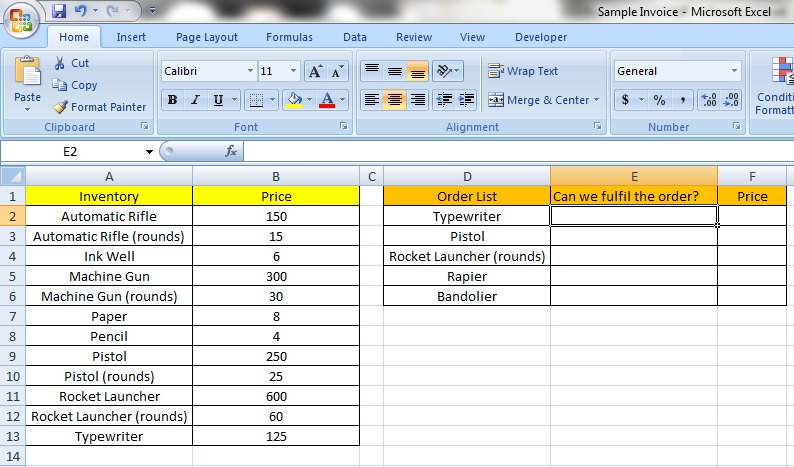
    Here is our inventory list in column A and our price list in column B. Apparently everything a warrior poet needs.

    VLOOKUP 1

    In column D is our client’s order list and in column E, blank cells for us to put a formula in to determine whether we have the item in stock and column F, which we will put another VLOOKUP formula into to determine the price of the item if we have it.

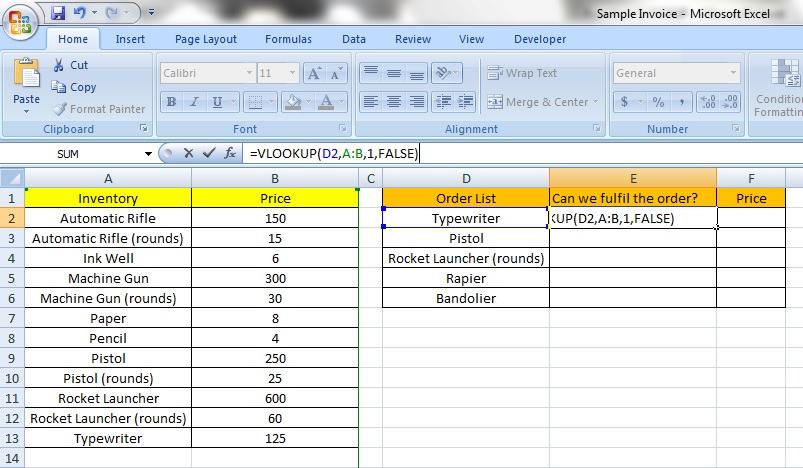
    Here’s an example:

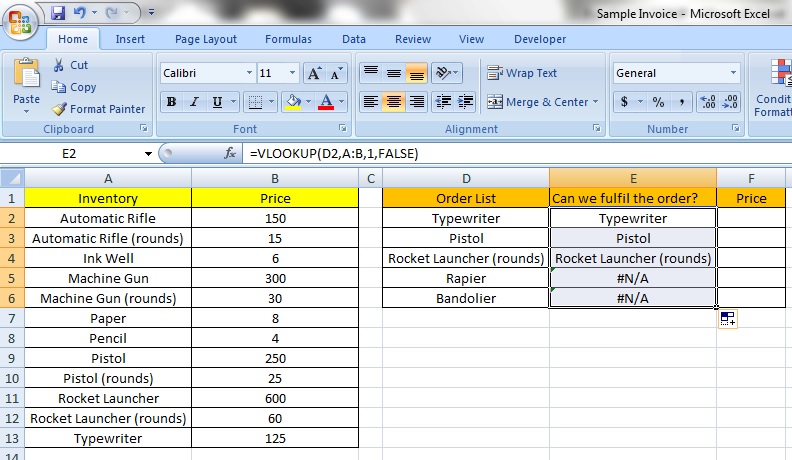
    =VLOOKUP(D2,A:B,1,FALSE)

    VLOOKUP 2

    The structure of the VLOOKUP function starts with the ‘=’, as all formulas do. Then the VLOOKUP function comes next and then the contents framed in ‘(‘ and ‘)’.

    How about the contents?

    D2 refers to the first item that you want to confirm is in the inventory list – in this instance, it is a Typewriter (which I am sure you may not have used or seen before). The cell below this would refer to D3, the Pistol, as it is the 2nd item, D4 would refer to the 3rd item, the Rocket Launcher (rounds) and so on.

    Let’s call the next part, consisting of columns A and B, the Comparison Table. A:B, as you have probably noticed, is a column label reference consisting of 2 columns.  This means that the whole of column A and B have been selected.  So, our Comparison Table consists of column A, which is the list of the store’s inventory and column B, which is the price of each item

    *A point to note – this is crucial! The items in D2, for that matter, in column D, must be the items that you want to compare against in the 1st column of the Comparison Table, in this case, column A as it is the 1st column.  The contents of D2 must be of the same type as those in the 1st column of your Comparison Table – in this case, the names of items.

    How about the 1? This is a column reference and it means that we are checking the contents of D2 against the contents in the 1st column of A:B.  That’s because all we want to do is confirm whether the item in D2 is in the inventory list of column A.

    What if we wanted to know just the price? As you have guessed, we change the 1 to 2, meaning that we want to compare the contents of D2 with the items in column A and to get back the contents of column B, the 2nd column in our Comparison Table, hence the 2, which would be the price of the item.

    This just gives us the price of the item, though and not its name. So, if we wanted to check whether the item in D2 is within column A and to ALSO know the price of the item from column B, we would have to have 2 VLOOKUP formulas.

    You must type either TRUE or FALSE in the final part of the structure.

    FALSE means that you want VLOOKUP to match the contents of D2 EXACTLY against the contents of A:A, letter for letter, number for number, word for word.

    Typing TRUE means that you want an approximate match, meaning that if the contents of D2 are close to that of A:A, then the contents of A:A appear. Though this is useful for certain purposes, it is usually not what we are looking for.

    Here’s what I mean:

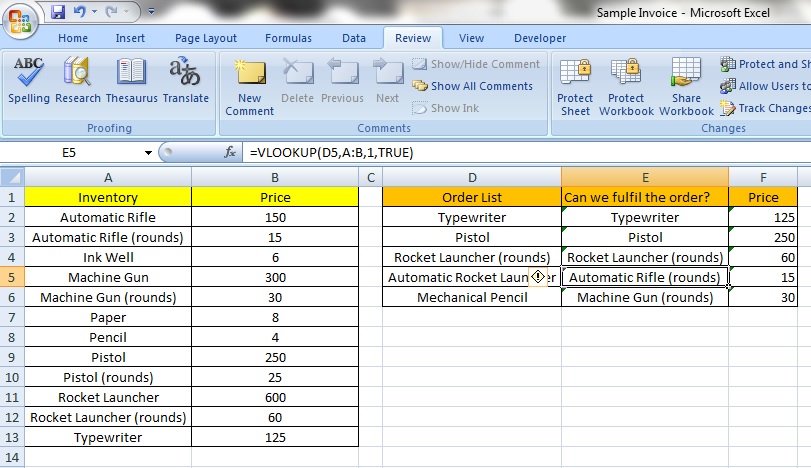
    =VLOOKUP(D5,A:B,1,TRUE)

    VLOOKUP 5

    Now, we know that we don’t sell Automatic Rocket Launchers or Mechanical Pencils, but Excel has returned values that are closest to them, Automatic Rifle (rounds) being the closest to Automatic Rocket Launchers and Machine Gun (rounds) being the closest to Mechanical Pencil.

    Now, let’s copy the formula to the cells below.

    VLOOKUP 3

    If we have the items, the formula gives us the name of the item, meaning that it is within the inventory list in column A.

    We see that we can only supply the 1st 3 items and that we do not have the Rapier and the Bandolier.  We know this as the cells with the formula beside the Rapier and Bandolier have retuned us #N/A. Oh, well.

    Let’s also get the prices of the items that we can supply to our client. Here’s the formula:

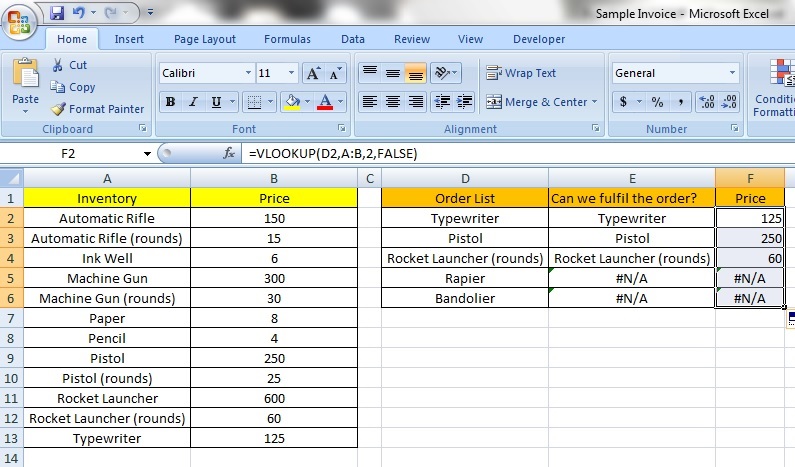
    =VLOOKUP(D2,A:B,2,FALSE)

    VLOOKUP 4

    As in the first VLOOKUP formula, when we copy the cells downwards, we see that the 1st 3 items have their prices indicated, but for the Rapier and Bandolier only the #N/A is displayed.  This is what we are expecting – no item, no price.

    Now, what if you wanted to remove the #N/As so that it looks nice? Well, we will get to that in another lesson.

  • Automation 1: Mail Merge

    Time to learn: 20 minutes

    Need to send out a standardised form to dozens of your customers?  Hundreds?  Thousands?  Feeling the cramp in your fingers from typing out the same form over and over?  Even good old copy and paste ain’t enough?

    From the interconnectivity of Microsoft’s Word and Excel comes an amazing step in office automation – the Mail Merge.

    What you are going to learn here will make you WORSHIPPED.

    Let’s start with some data.

    Mail1

    This is a list of a 12 name customer database.  You will see that we have 5 columns of information – ‘Salutation’, ‘Name’, ‘Address’, ‘Membership Points’ and ‘Bonus Points Remaining’.

    How are we going to create a standardised form with all this data without using copy and paste 60 times?

    Step 1: Ensure that all your data columns have TITLES.  This is essential when using the Mail Merge.  Save your data in an Excel file. I have called mine ‘Mail Merge’.  Remember that all your data is in Sheet 1 – you will see why later.

    Step 2:

    Mail2

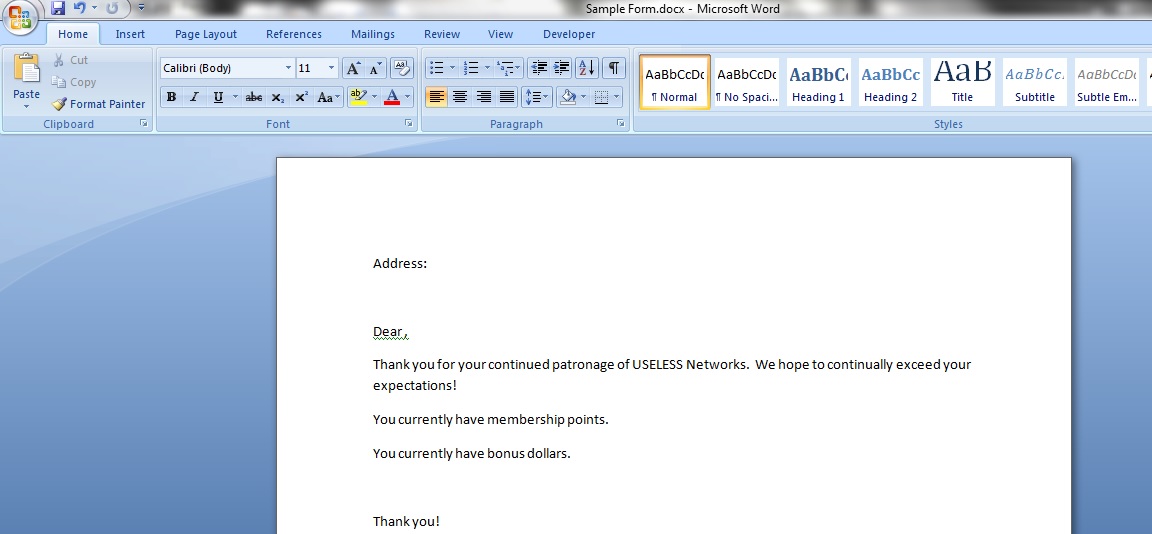
    Here we have a standardised template for mailing to your customers – just use Word and type anything you want, really!

    Step 3:

    Mail3

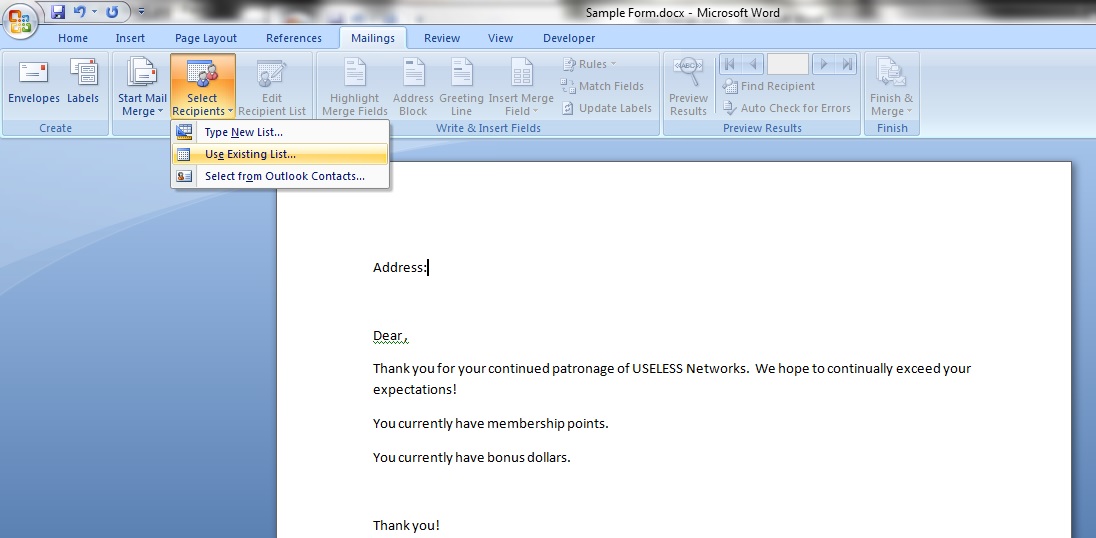
    Now, in Word, go to the ‘Mailings’ tab, select ‘Select Recipients’ and click on ‘Use Existing List’.

    Step 4:

    Mail4

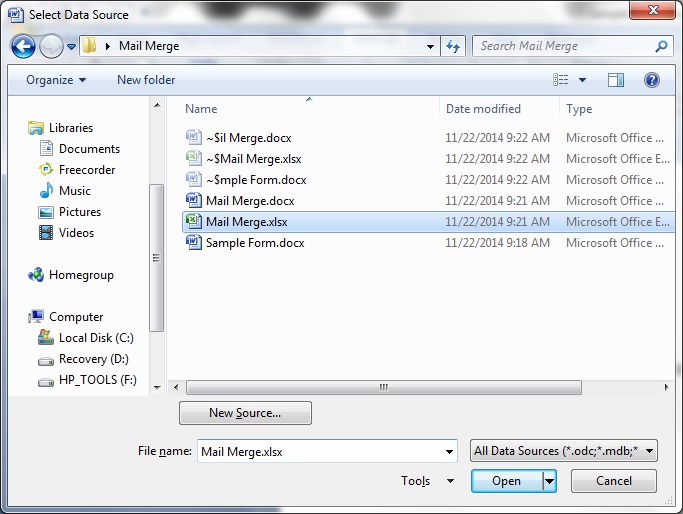
    You are still in Word, right?  Good.  Go to the location of your Excel file and select it.  Click ‘Open’

    Step 5:

    Mail5

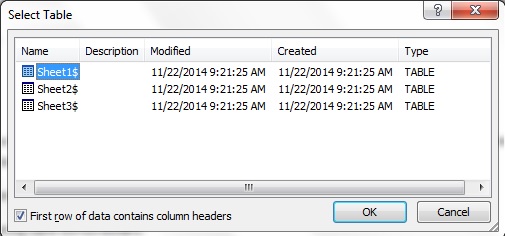
    You will see an option box like this.  Select ‘Sheet 1’, as that is where all our data is and click ‘OK’.  By doing this, Word now knows where to get the essential data from.

    Step 6:

    Mail6

    Now, in Word, return to the ‘Mailings’ tab and you will see that the option ‘Insert Merge Field’ has become available.

    Step 7:  Select ‘Insert Merge Field’ and you will see a selection of all our column data titles (‘Salutation’, ‘Name’, ‘Address’, ‘Membership Points’ and ‘Bonus Points Remaining’) from our ‘Mail Merge’ Excel file!

    Step 8:

    Mail7

    Now, all you have to do is select where you want to place the fields.  Click on the spot you want to place the data field and then select ‘Insert Merge Field’ and click on the data field you want!  Easy!  Notice that as you place the merge fields, their names appear framed by <<>>, like <<Address>> and <<Salutation>>.

    Step 9:

    Mail8

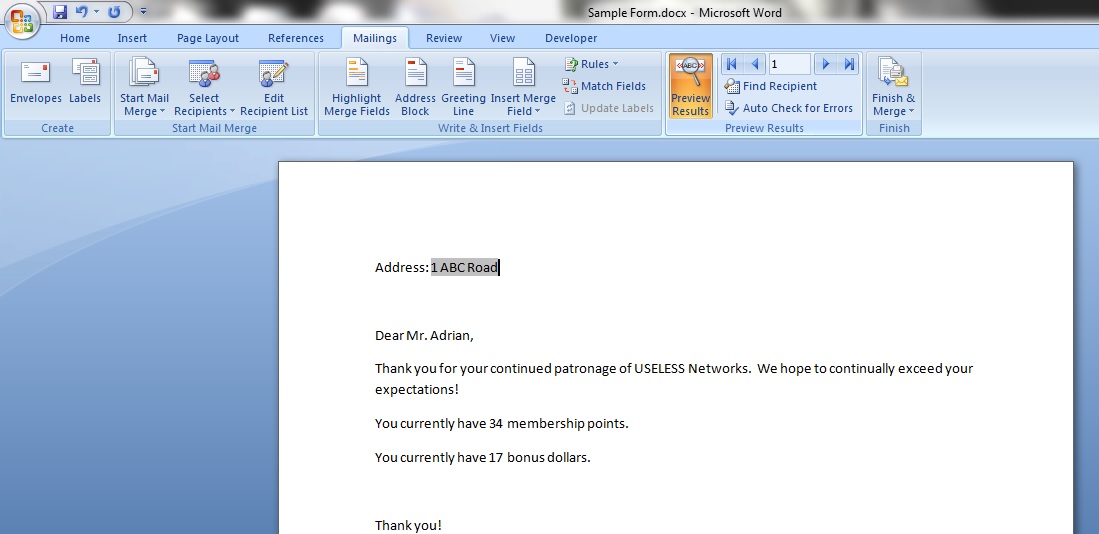
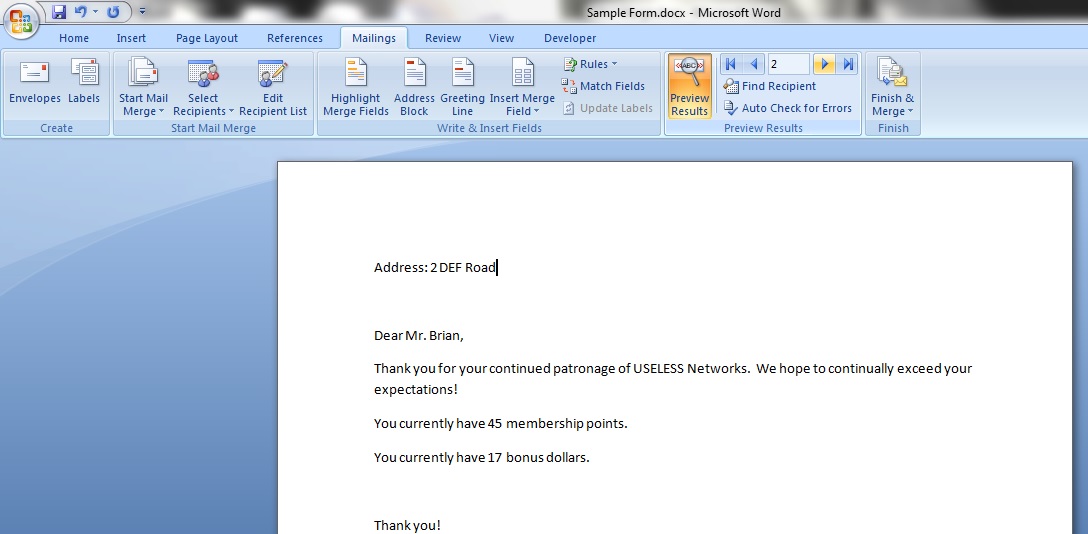
    Once you are done, click on ‘Preview Results’.  See that the data we have from the ‘Mail Merge’ Excel file has been instantly transferred to the positions we wanted onto the Word document?  Are those tears in your eyes?

    Step 10:

    Mail10

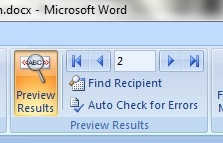
    Next to the ‘Preview Results’ button, there are some arrows.  Click on the single arrow facing right.  Notice that the number in that little box on the left of the arrow has changed from ‘1’ to ‘2’.

    Mail9

    Notice also that the information in the Word document has now changed from the details of the first customer in the ‘Mail Merge’ Excel file to the second customer?  You can select which customer’s details appear on the Word document by scrolling left and right in this manner.

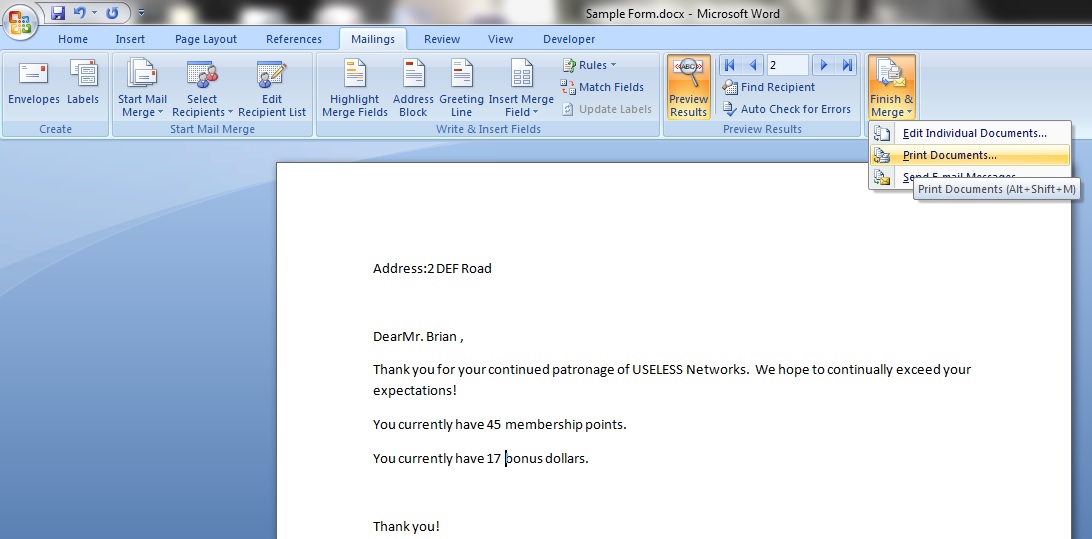
    Step 11: You can print these documents one by one if you wish, but there is another way to make it much faster.

    Step 12:

    Mail13

    Select the ‘Finish and Merge’ button and select ‘Print Documents’.

    Step 13:

    Mail14

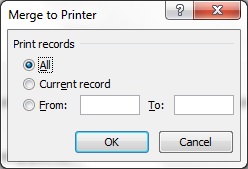
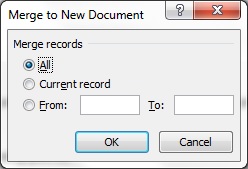
    An option box will appear with 3 options. ‘All’ will print all the records in your Excel file, ‘Current Record’ will print only the one you have on your screen now and ‘From; To’ will allow you to specify the specific range of records, maybe 1 to 3 or 10 to 12.

    Tip:

    Mail11

    Mail12

    You might like to see all the documents for a proof read before you print.  You can do this by selecting the ‘Finish and Merge’ button and clicking on the ‘Edit Individual Documents’.  You will see the same option box in Step 13, but instead of printing the records selected, Word will display them all for your inspection.

    You are now a one man army.


  • Functions 8: SUMIF, COUNTIF & AVERAGEIF

    Time to learn: 30 minutes

    Do you need to get the breakdown of sums, averages or a count of your data?  Need to get them by SEPARATE CATEGORIES?  Needed it yesterday?

    This series of formulas has so many uses, it’s amazing. You’ll be able to get the sums, counts and averages of items by specifying criteria of your design!

    Let’s start with some data.  Here we have a list of students, with the following columns – Name, Age, School, Grade and Fee.  Now, let’s see what we can do.

    SUMIF/SUMIFS

    This function adds values together if they fulfil certain conditions that YOU specify!

    SUMIF will only add values based on 1 specified condition

    SUMIFS will add values based on more than 1 specified condition

    Here’s an example. Let’s try to find out how much in fees students from school X pay:

    =SUMIF(C:C,”X”,E:E)

    SUMIF 1

    Like all formulas, begin with ‘=’ and then the function SUMIF, with the contents framed by ‘(‘ and ‘)’.

    How about the contents?

    C:C refers to the data that contains the condition or criteria that would decide how the data is added together. In this case, this is the school the students go to.

    “X”, is the criteria that we have specified. Hence, we are looking at column C:C and specifying “X” as the criteria.  As it is a letter, remember to frame X with “ and “.  If it was a number, there is no need of “ and “.  So, we are looking only at students that go to school “X”.

    E:E refers to the data we want added together, in this case, the fees that each student pays.

    Hence, we want to add all the school fees together of all students that go to school “X”. So, we are adding the values contained in E:E that have the condition “X” in column C:C.  In this case, the answer is $150.

    SUMIFS

    How about SUMIFS?

    This function is very similar to SUMIF. Let’s see if we can find out how much fees students in school X that have B grades pay:

    =SUMIFS(E:E,C:C,”X”, D:D,”B”)

    SUMIFS 1

    Note how this is slightly different from SUMIF.

    Like all formulas, begin with ‘=’ and then the function SUMIF, with the contents framed by ‘(‘ and ‘)’.

    E:E refers to the data we want added together, in this case, the fees that each student pays.

    C:C refers to the schools that the students have gone to. By specifying “X”, we are stating that we want only students from school “X”.

    D:D refers to the grades that the students obtained and by specifying “B”, we are stating that we only want students with “B” grades.

    Hence, we will get from the formula, the fees that all students from school “X” with “B” grades pay. In this case, $100.

    COUNTIF/COUNTIFS

    Like SUMIF and SUMIFS, COUNTIF counts values with 1 specified condition, while COUNTIFS counts values with more than 1 specified condition.

    COUNTIF

    Let’s see if we can find the number of students who attend school “Y”.

    Here’s how it works:

    =COUNTIF(C:C,”Y”)

    COUNTIF 1

    C:C refers to the list where we want items counted. In this case, C:C refers to the schools that students go to.

    “Y” refers to the item we want counted. This means that we want the number of students who attend school “Y”, the answer being 3.

    COUNTIFS

    Let’s see if we can find the number of students that attend school “X” and have gotten “B” grades:

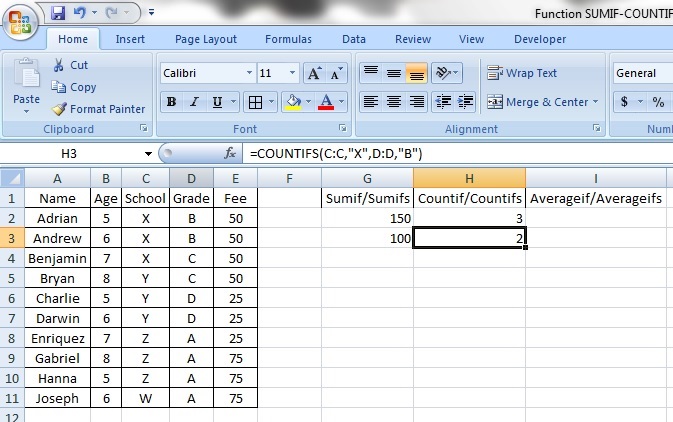
    =COUNTIFS(C:C,”X”,D:D,”B”)

    COUNTIFS 1

    Now, C:C and D:D refer to the lists where we want items counted, with “X” being the school attended and “B” being the attained grades.

    Hence, we will get the number of students who have attended school “X” and attained the “B” grade, which is 2.

    AVERAGEIF/AVERAGEIFS

    Much the like the previous 2 functions, AVERAGEIF determines the average of items with 1 specified condition, while AVERAGEIFS, like its counterparts, determines the average of items with more than 1 specified conditions. They work in the same way too.

    AVERAGEIF

    Let’s find out the average of fees paid by students from school “Z”:

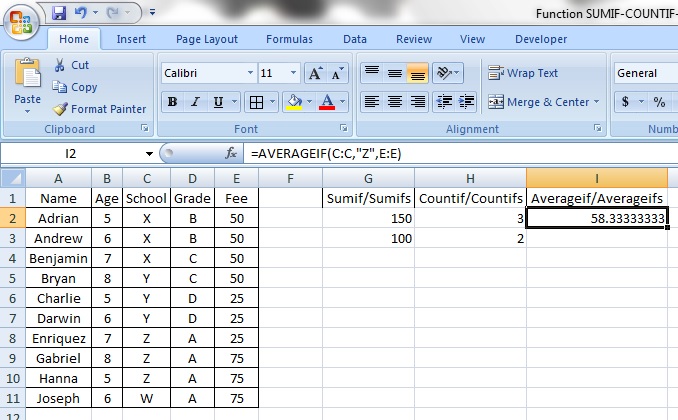
    =AVERAGEIF(C:C,”Z”,E:E)

    AVERAGEIF 1

    C:C refers to the list of schools, with “Z” being the condition specified. So we are looking at school “Z” specifically.

    E:E refers to the items we want averaged, in this instance the fees paid. So we will get the average of fees paid by all students from school “Z”.  The average being $58.33.

    AVERAGEIFS

    The final function we will look at today is the plural version of AVERAGEIF. AVERAGEIFS determines the average of items with more than 1 specified condition.

    Let’s try to find out the average of fees paid by students from school “Y”, who have gotten “D” grades:

    =AVERAGEIFS(E:E,C:C,”Y”,D:D,”D”)

    AVERAGEIFS 1

    E:E refers to the items we want averaged, in this instance the fees paid.

    C:C refers to the list of schools, with “Y” being the condition specified. So we are looking at school “Y” specifically.

    D:D refers to the grades that the students obtained and by specifying “D”, we are stating that we only want students with “D” grades.

    With all that, we get the average of fees paid by all students from school “Y” who have attained a “D” grade.  The result of that is $25.

    Feeling mighty, yet?


  • Functions 10: Wildcard

    Time to learn: 10 minutes

    Ever wanted to find out something about your products just from their names?  Tired of counting stuff BY HAND?  God forbid.

    Ready to save yourself hundreds of hours doing manual work that can be better spent conceptualising and innovating?

    Let’s get it on!

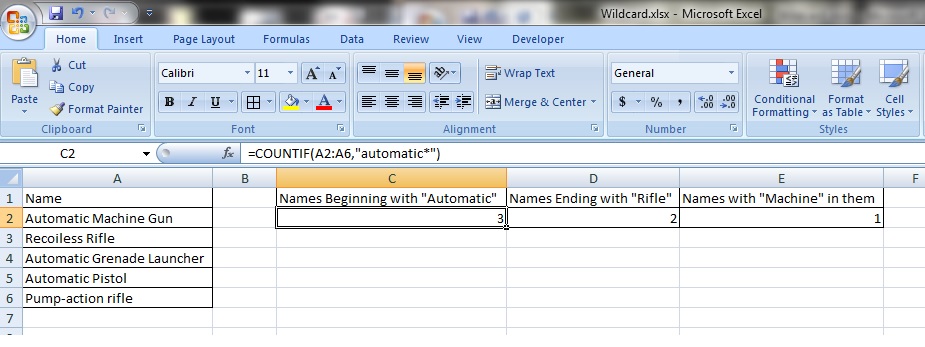
    Let’s start with some data.  This is a list of 5 items in a gun catalogue.

    We want to find out how many guns are “Automatic”, how many are “Rifles” and how many of them can be characterised under the “Machine” category.

    Step 1: Let’s create a title for ‘Names Beginning with “Automatic”.

    Step 2: Now, by using a COUNTIF and a wildcard “*”, we will find out how many names begin with “Automatic”, with the following function:

    =COUNTIF(A2:A6,”automatic*”)

    wild1

    Neat?  That’s right.

    Step 3: Now, by using the COUNTIF and a wildcard “*”, we will find out the number of names that end with “Rifle”, with the following function:

    =COUNTIF(A2:A6,”*rifle”)

    wild2

    Tip: We see that by the placement of the wildcard “*”, we can determine what we want to look for.

    Step 4: Now, by using the COUNTIF and a wildcard “*”, we will find out the number of names that contain the word “Machine”; besides their first and last letter, with the following function:

    =COUNTIF(A2:A6,”*machine*”)

    wild3

    Cool?  You bet.

    Notice that when we specify the letter next to the wildcard, it ignores cases in our selection, so it doesn’t matter if the letter is small or in capitals – the wildcard gets them all!

    Tip:

    The wildcard works for SUMIF, COUNTIF and AVERAGEIF and their variants, but does not work on the simpler IF function.

  • Sample 2: Interactive Database

    We all work with data – tonnes of it.  Ever wanted to find all the information you need, with just 1 click of the mouse?

    Let’s build an INTERACTIVE DATABASE.

    Time to learn: 30 minutes

    Functions you will need:

    1. Data Validation
    2. Vlookup
    3. Conditional Formatting

    Step 1:

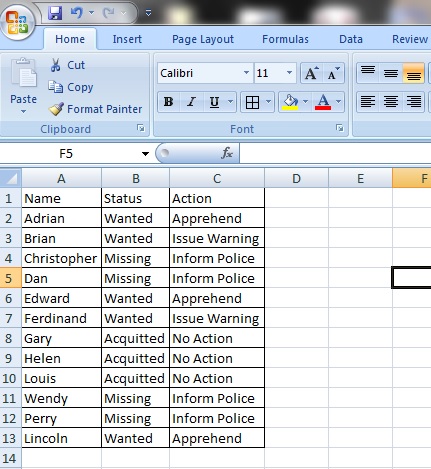
    Let’s start with some data.

    1

    Here is a list of suspects in a database.  All of them have a name and a ‘Status’, whether they are ‘Wanted’, ‘Acquitted’ or ‘Missing’.  They also have a column next to their ‘Status’, indicating the ‘Action’ to be taken if they are seen – to ‘Apprehend’, ‘Issue Warning’ or just to ‘Inform Police’.

    Step 2:

    Let’s create a dropdown list of all the suspects in our list.

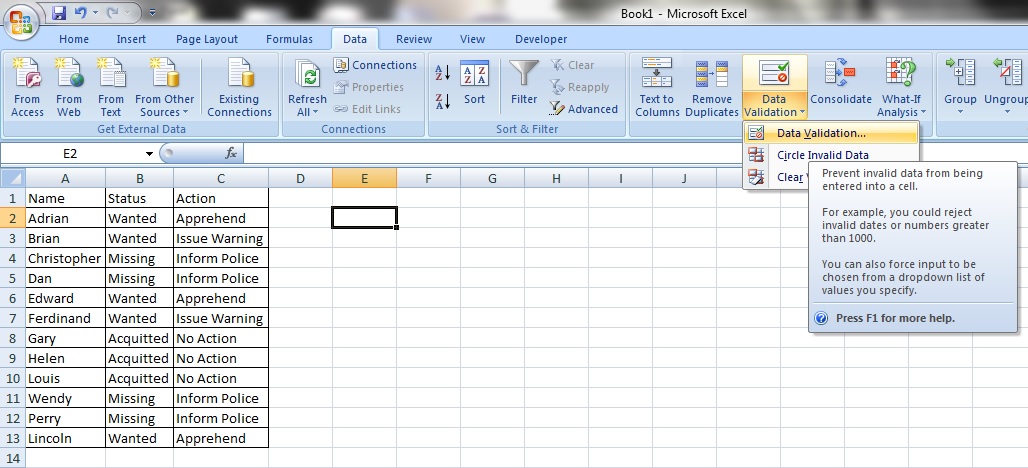
    2

    Go to ‘Data’ tab and select ‘Data Validation’.  Select ‘Data Validation’ again.

    Step 3:

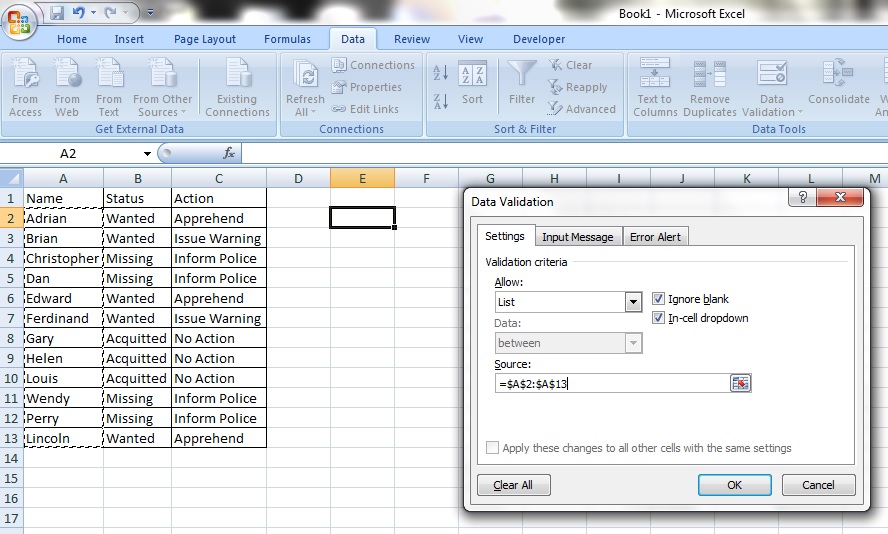
    An option box will appear with the title ‘ Data Validation’.

    3

    Under the field ‘Allow:’, select the option ‘List’ and click ‘OK’.

    Step 4:

    In the field named ‘Source’, click and drag on the list of cells with the names of all the suspects, from cells A2 to A13.

    4

    You will see that the list of names now has a dotted line bordering it and the ‘Source’ field now has the reference ‘=$A$2:$A$13’.  Click ‘OK’.

    Step 5:

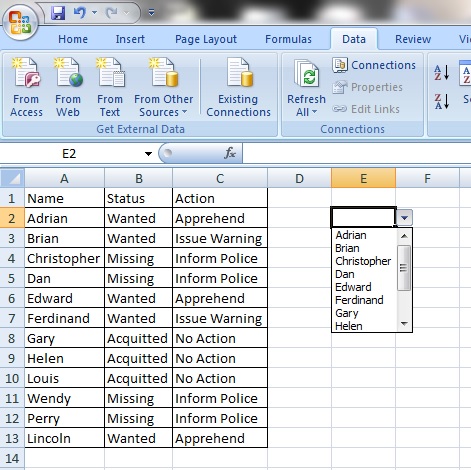
    Now you have a dropdown list of all the names of suspects in our database!

    5

    Remember that the dropdown list is presented in EXACTLY the same order as they are in the original list (cells A2 to A13).  You can alter the order of the dropdown list by altering the order in the original list (cells A2 to A13).

    Step 6:

    Now, type in ‘Name’, ‘Status’ and ‘Action’ as shown.

    6

    These will be OUR data titles.

    Step 7:

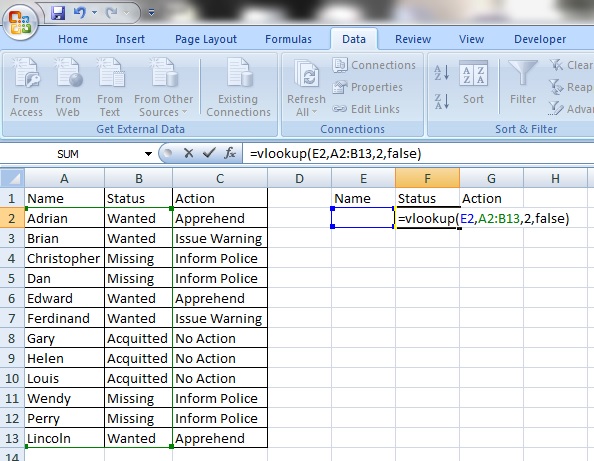
    In cell F2, under the title ‘Status’, enter the following VLOOKUP function:

    7

    =VLOOKUP(E2,A2:B13,2,FALSE)

    E2 refers to the cell that the names of the suspects will appear in from our dropdown list.

    A2:B13 is the complete cell reference of all the suspects’ ‘Name’ and ’Status’.

    2 refers to the option that we have specified –that we want the information in the 2nd column to the right of the suspect’s name, counting the suspect’s name as well (meaning ‘Name’ being the 1st column and ‘Status’ being the 2nd column), to appear in the cell we have currently selected – F2.

    Step 8:

    Do the same in the cell under ‘Action’ –cell G2:

    8

    =VLOOKUP(E2,A2:C13,3,FALSE)

    E2 refers to the cell that the names of the suspects will appear in from our dropdown list.

    A2:C13 is the complete cell reference of all the suspects’ ‘Name’, ’Status’ and ’Action’ .

    3 refers to the option that we have specified –that we want the information in the 3rd column to the right of the suspect’s name, counting the suspect’s name as well (meaning ‘Name’ being the 1st column, ‘Status’ being the 2nd column and ‘Action’ being the 3rd column), to appear in the cell we have currently selected – G2.

    Step 9:

    9

    Now, when we select any name from the dropdown list in E2, their ‘Status’ and ‘Action’ are automatically displayed next to their names!

    Step 10:

    Let’s make it even more sophisticated!

    10

    Click on cell F2.  While still ensuring that the cell F2 is selected, select the ‘Home’ tab and select ‘Conditional Formatting’ then ‘Highlight Cells Rules’ and then ‘Text that Contains…’.

    Step 11:

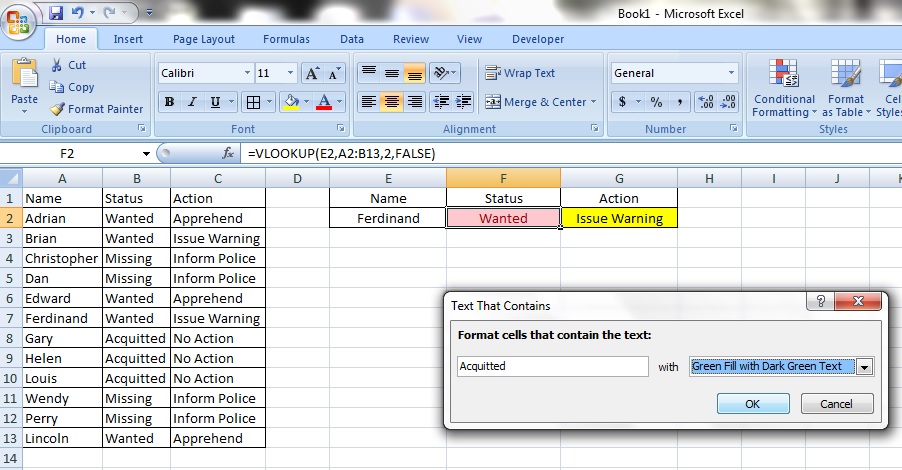
    An option box will appear.

    11

    In the ‘Format cells that contain the text:’ field, enter the text ‘Wanted’.  In the box to the right of that, let’s just select Light Red Fill with Dark Red Text.  Click ‘OK’.

    Step 12:

    12

    Follow step 10 again and this time, in the ‘Format cells that contain the text:’ field, enter the text ‘Missing’.  In the box to the right of that, let’s just select Yellow Fill with Dark Yellow Text.  Click ‘OK’.

    Step 13:

    13

    Follow step 10 again and this time, in the ‘Format cells that contain the text:’ field, enter the text ‘Acquitted’.  In the box to the right of that, let’s just select Green Fill with Dark Green Text.  Click ‘OK’.

    Step 14:

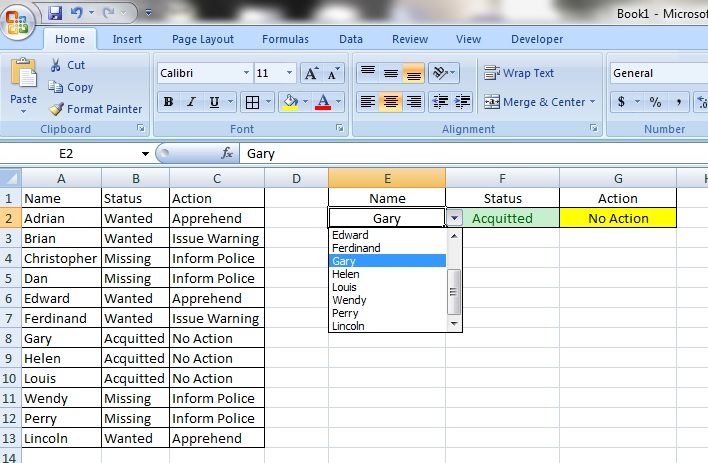
    14

    NOW, when you select the name ‘Gary’, notice that the ‘Status’ of ‘Acquitted’ is now coloured in green?  You have just formatted the cell F2 to respond to the different ‘Status’ types by changing colour!  Great job!

    15

    Notice the change now when you select the name ‘Wendy’.  Cool, right?

    Tip:

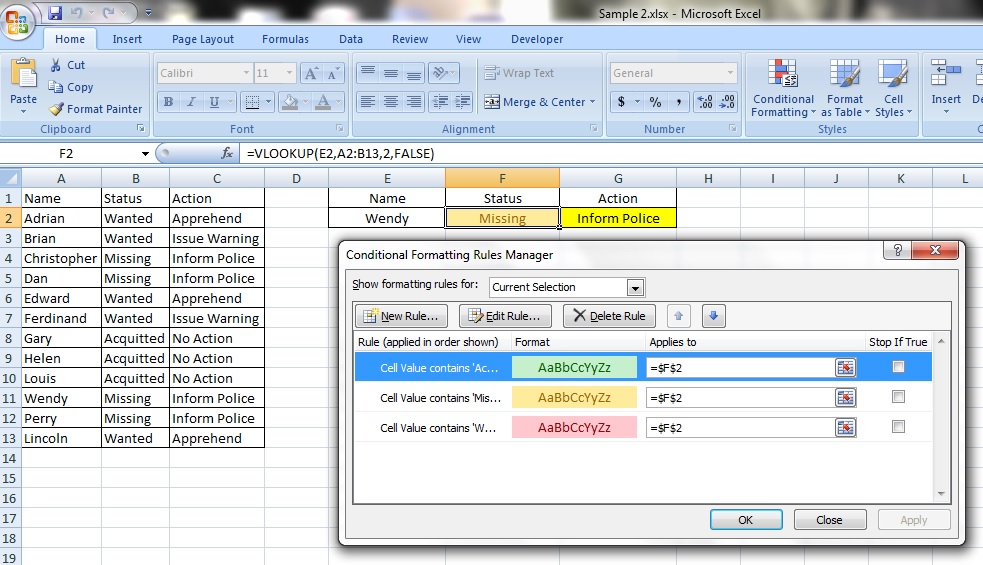
    16

    You can see how many formats you have programmed into the cell by selecting the cell and then by selecting the ‘Home’ tab, ‘Conditional Formatting’ and then ‘Manage Rules’.

    Notice that we have programmed 3 rules into cell F2 that change the colour of the cell depending on whether the text in it is ‘Wanted’, ‘Missing’ or ‘Acquitted’.

    17

    Excellent work!


  • Aesthetics 3: Conditional Formatting

    Ever wish you could tell at a glance who your top performers are? Now you can!

    Conditional formatting is an exciting aspect of Excel that allows you to change the way your spreadsheet LOOKS, based on the DATA entered.

    Let’s have a look by starting with some data:

    Conditional 1

    Here we have 12 colleagues and the total number of calls they have made from January to June.

    Now, we will colour-code all the numbers to find out the top 3 and the bottom 3 in terms of performance each month.

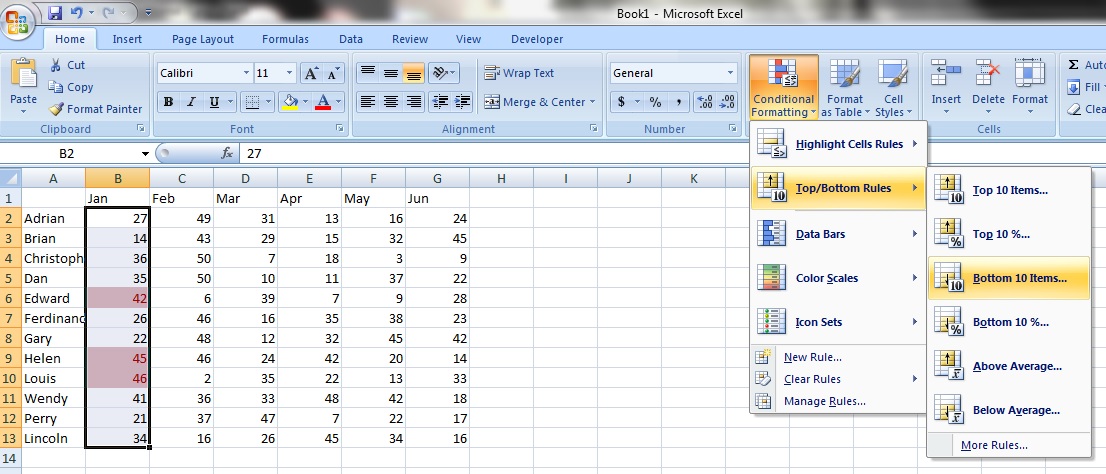
    Step 1: Select the ‘Home’ tab and highlight all the values in the ‘Jan’ column, like so.

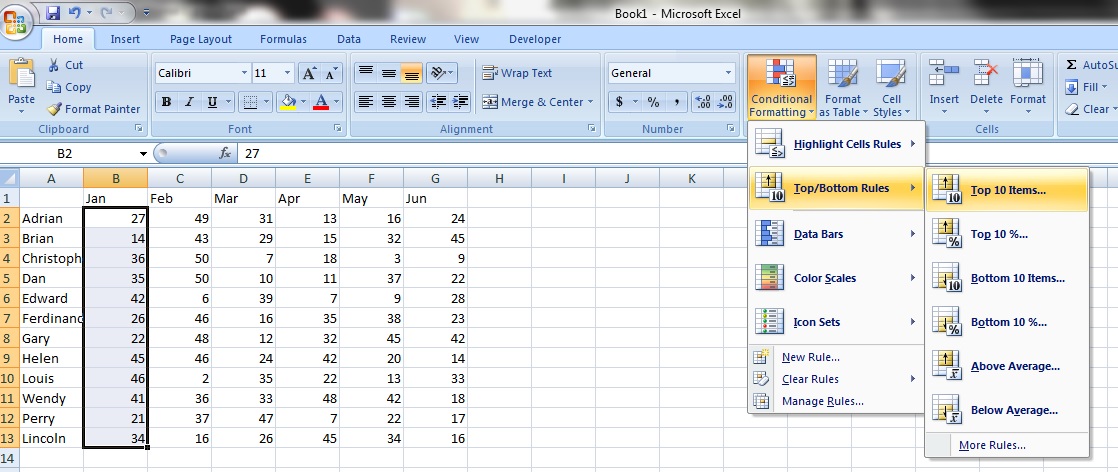
    Conditional 2

    Step 2: Click on ‘Conditional Formatting’ and then select ‘Top/Bottom Rules’ and then ‘Top 10 items…’. Remember to ensure that all the values in the ‘Jan’ column are still highlighted.

    Step 3: An option box will appear.  In the field that indicates ‘Format cells that rank in the TOP:’, enter the value 3.  This will mean that the conditional formatting will affect only the top 3 numbers.  If you enter 5, it will then affect the top 5.

    Conditional 3

    Step 4: You can select how you want the cells to be formatted by selecting one of the options in the dropdown box on the right.  Here, we will choose ‘Light Red Fill with Dark Red Text’.

    Now, the top 3 in ‘Jan’ have been highlighted in red!

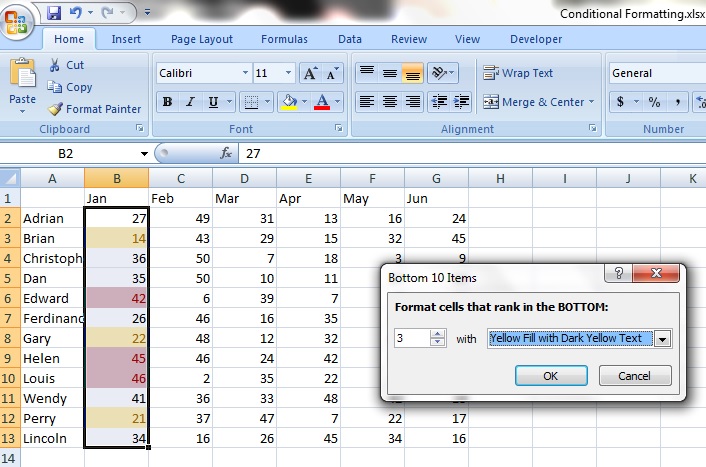
    Step 5: Now, follow step 1 to 3 again, but select ‘Bottom 10 items…’ instead.

    Conditional 4

    Step 6: When the option box appears, enter 3 in the field that indicates ‘Format cells that rank in the BOTTOM:’.  For the formatting, we will choose ‘Yellow Fill with Dark Yellow Text’.

    Conditional 9

    Step 7: Now the bottom 3 values are in yellow.

    Nice.

    Step 8: Now, to ensure that this formatting applies to all the months, select all the cells from B2 to B13 (this is the list of numbers for ‘Jan’) and right click.  Select ‘Copy’.

    Conditional 5

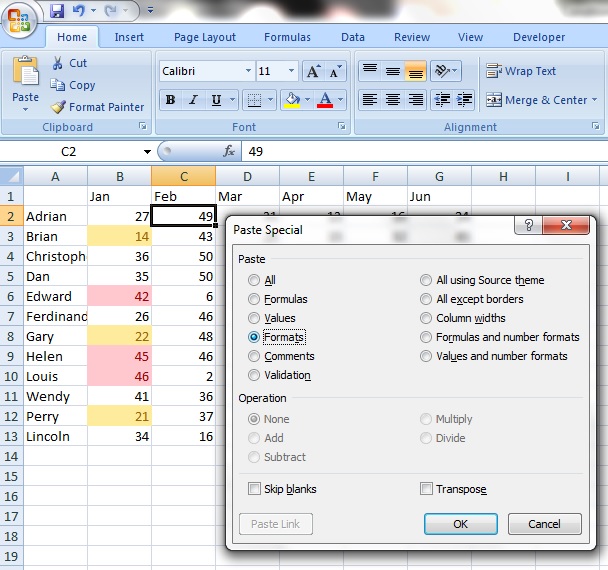
    Step 9: Left click on the first cell with numbers in it in the ‘Feb’ column.  Right click and select ‘Paste Special’.

    Conditional 6

    Step 10: Now, click on ‘Formats’.

    Conditional 7

    Step 11: Click ‘OK’ and you will see that the list of numbers in ‘Feb’ have been modified with the same conditional formatting as that in ‘Jan’.

    Conditional 8

    Awesome.

  • Data Processing 2: Pivot Tables

    Time to learn: 20 minutes

    Have tonnes of data that you can’t make sense of?  Need a fast way to organise and view your 10,000 cell spreadsheet?  Then, pull that rabbit out of your hat with pivot tables!

    A pivot table compiles and summarises all the information in a spreadsheet into a table that you can manipulate easily.  Saves you time and makes you look incredible!

    The pivot table is an awesome function and helps you do many things at once!

    Step 1:

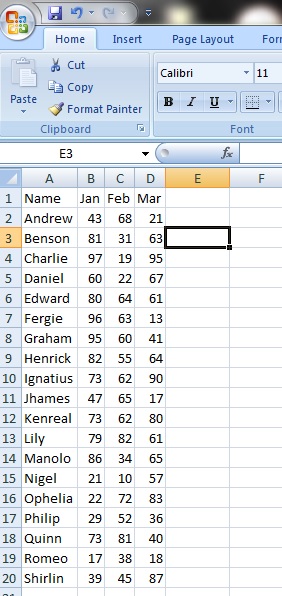
    Let’s start with some data.

    pivot 1

    Here we have 19 colleagues and the number of sales they have completed from January to March.

    Now, what if we want to count the total sales for all of them per month?

    Step 2:

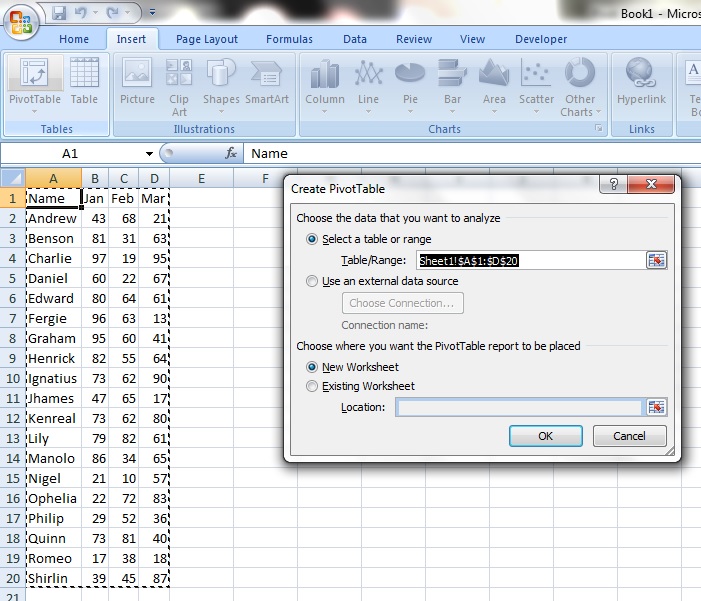
    Now, click on any cell that has our data in it (meaning anywhere from cells A1 to D20) and then click on the ‘Insert’ tab and select ‘Pivot Table’.

    pivot 2

    Step 3:

    An option box will appear.  Now, notice that in the box below ‘Select a table or range’, you will see the cell reference Sheet1!$A$1:$D$20.

    pivot 3

    Notice that this is exactly the cell reference of our list of names and sales per month from January to March?

    This means that the pivot table will use all the information from cells A1 to D20.  Neat!

    Tip:

    You can change this reference by selecting a new range of cells if you want.  This allows for changing the contents of your table.

    Step 4:

    Now, we move to the option ‘Choose where you want the PivotTable to be placed’.

    pivot 3

    You have 2 options.

    Option 1:

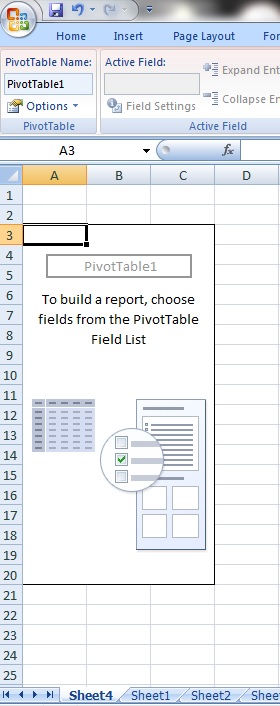
    ‘New Worksheet’ automatically creates a new tab with the pivot table once you click ‘OK’, like so.

    pivot 4a

    Notice that a new sheet, ‘Sheet 4’, has been created with the pivot table on the left side of the screen and the options on the right side of the screen.

    pivot 5

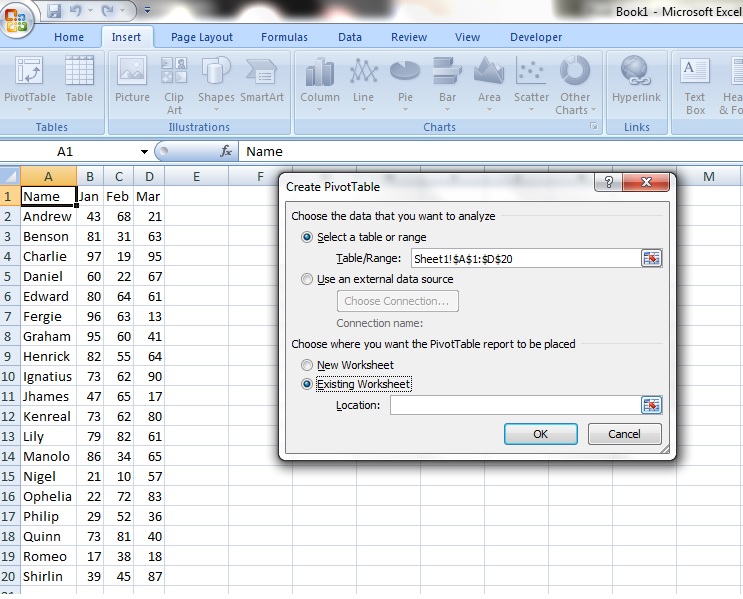
    Option 2:

    pivot 6

    ‘Existing Worksheet’ allows you to place the pivot table on the same sheet as your data.  In this case, we have selected cell F2, which becomes bordered in dotted lines.

    pivot 7

    In the ‘Location’ box, you now see the cell reference Sheet1!$F$2, which refers to the location where we want the pivot table placed – in cell F2!

    Clicking ‘OK’ creates a pivot table on the same sheet, with several options boxes on the right side.

    pivot 8

    Step 5:

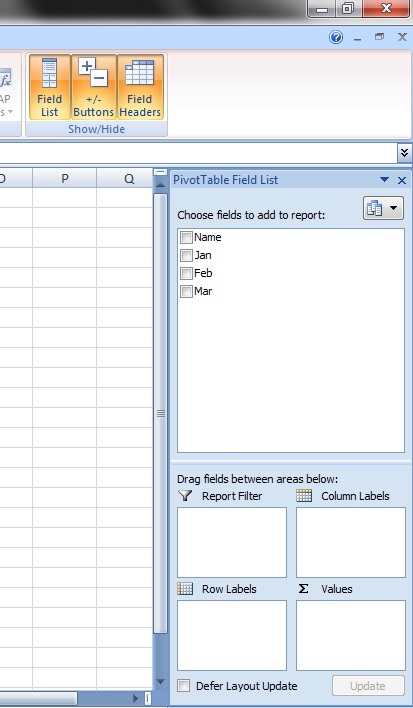
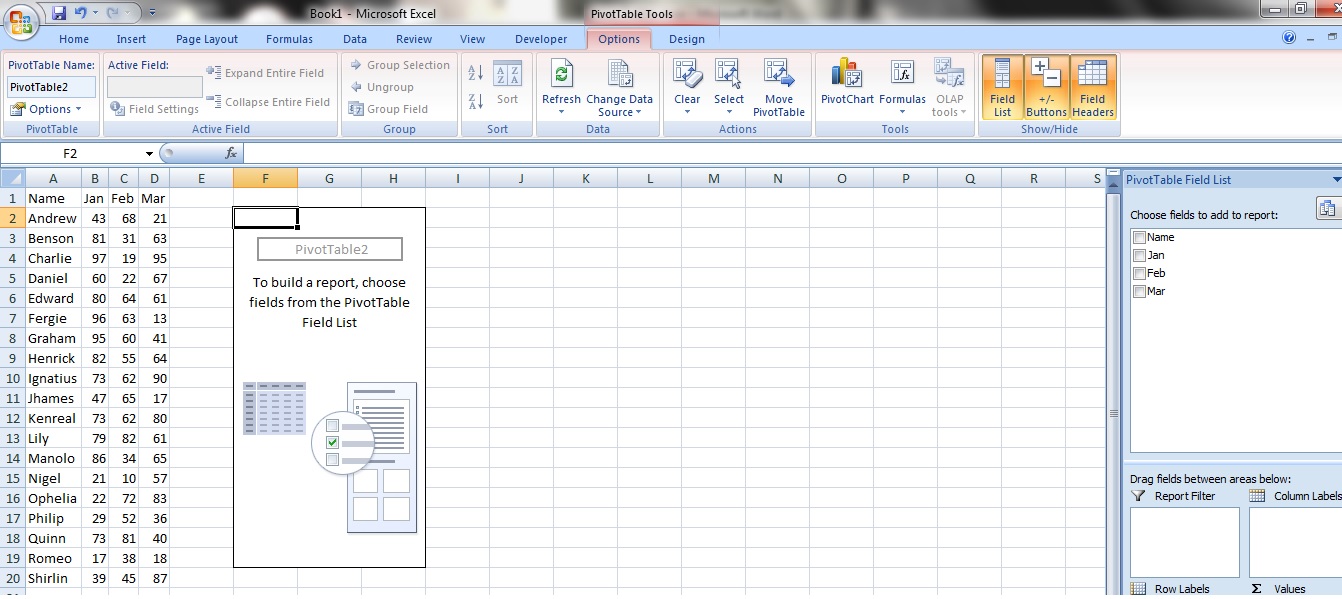
    Now, notice that the titles of the data (the first cell of each column), ‘Name’, ‘Jan’, ‘Feb’ and ‘Mar’ are now listed in the box ‘Choose fields to add to report’.

    pivot 9

    Step 6:

    Click and drag the field ‘Name’ into the ‘Row Labels’ box.

    pivot 10

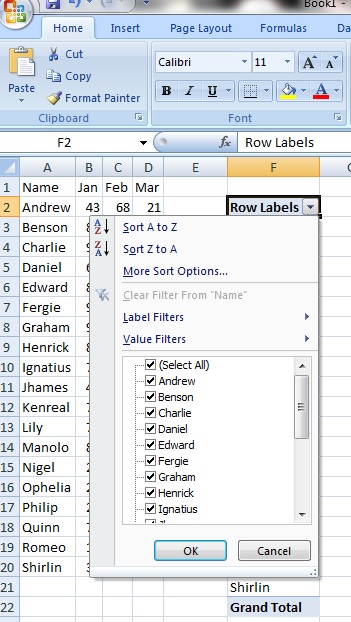
    Notice that the field ‘Name’ is now in the ‘Row Labels’ box and that a list of names has been created, from Andrew to Shirlin.

    Tip:

    pivot 12

    By clicking on the dropdown arrow you can actually manipulate the list by sorting it in ascending order using ‘Sort A to Z’ or descending order using ‘Sort Z to A’ or even take out some names by unchecking the arrows next to each name.

    Step 7:

    Now, click and drag all the other field names from ‘Jan’ to ‘Mar’ into the ‘Values’ box.

    pivot 13

    Done!  Now you have a table with the grand total of all the sales made for each month from January to March.

    Tip 1:

    You can change how the data is processed.  Say, you want to count the total number of instances instead of adding them all up.

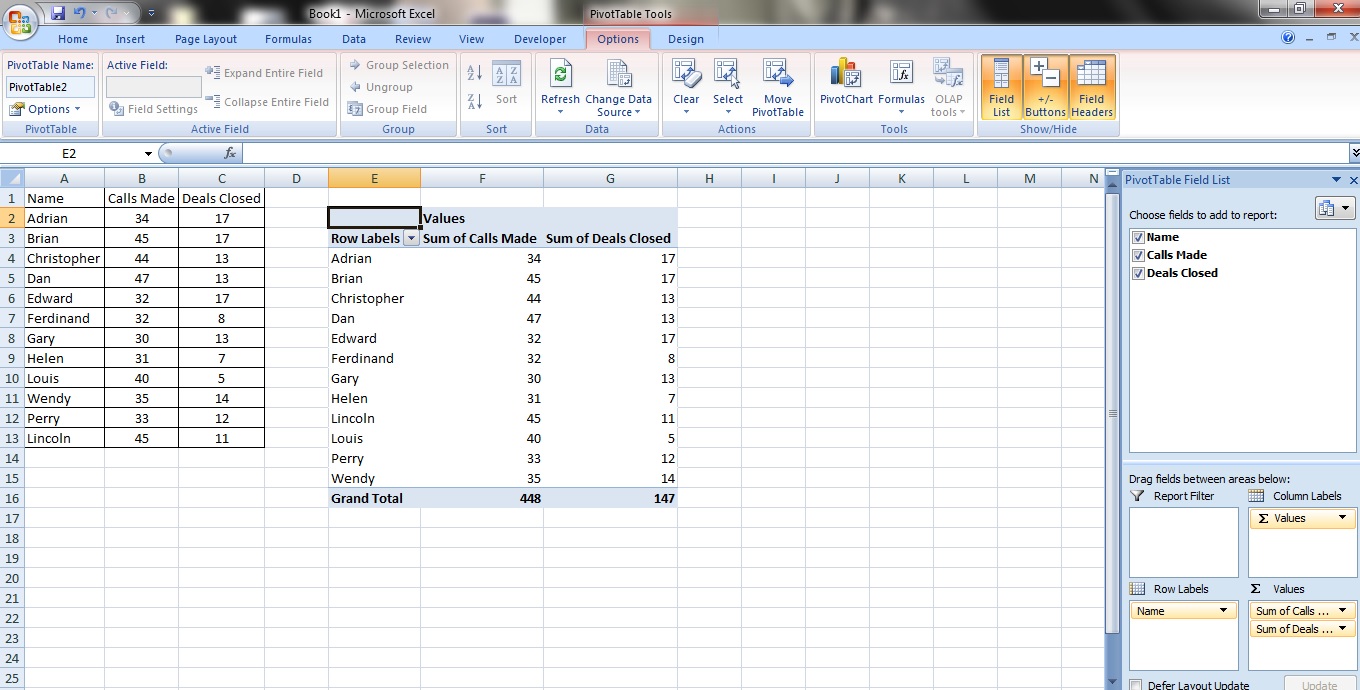
    Here we have a pivot table displaying the calls and deals closed for several colleagues:

    pivot 14

    Step 1:

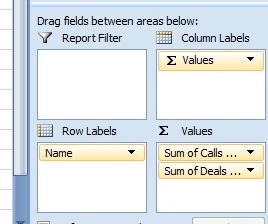
    To change the way the data is displayed, go to the menu at the bottom right.

    pivot 15

    Step 2:

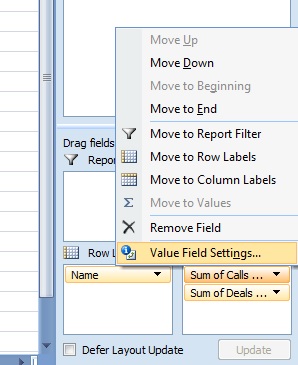
    By left clicking on any of the fields under ‘Values’, you will see this menu.

    pivot 16

    Select ‘Value Field Settings…’.

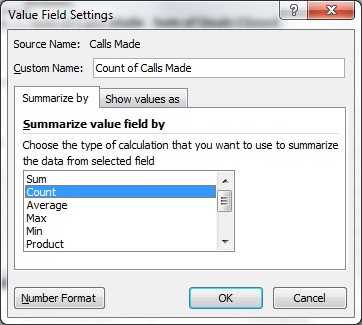
    Now, a whole list of options will appear for you to select on whether you want your data summed, counted or even averaged!

    pivot 17

    Step 3:

    Let’s just select ‘Count’ for illustration.

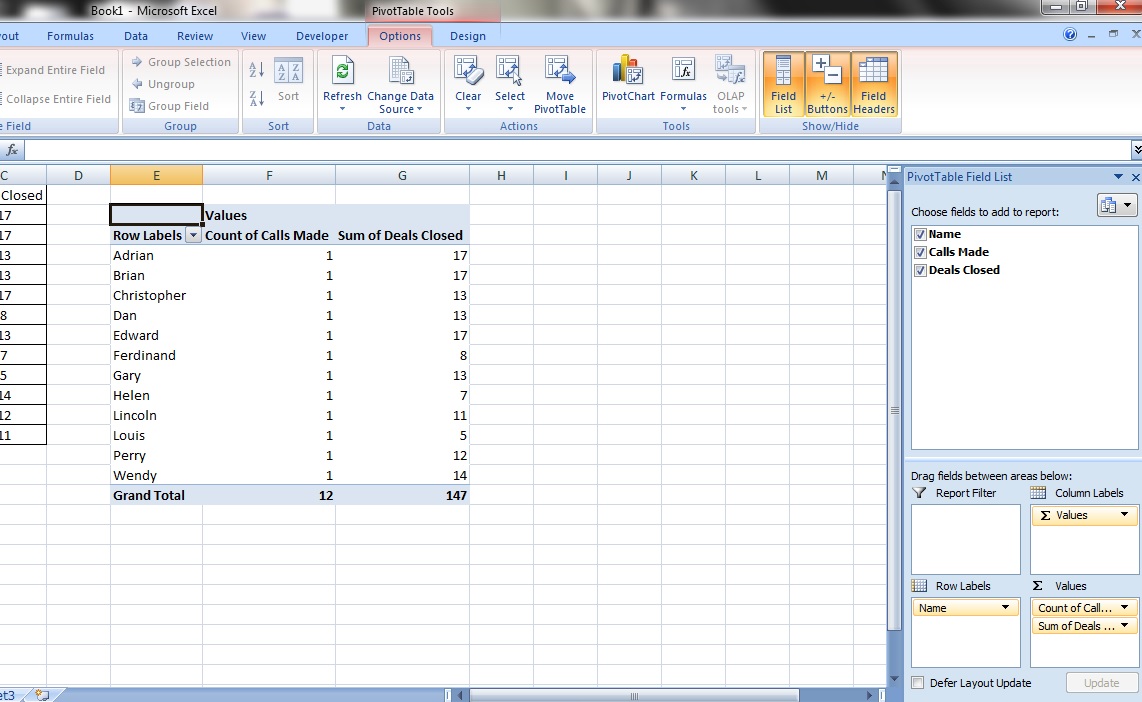
    pivot 18

    Notice that the data for calls made are no longer summed?  What we have done is COUNTED the instances where numbers appear for each of the colleagues – that means that we have counted the number of times any calls have been made at all.

    Tip 2:

    Did you know that pivot tables add up values corresponding to repeated names?

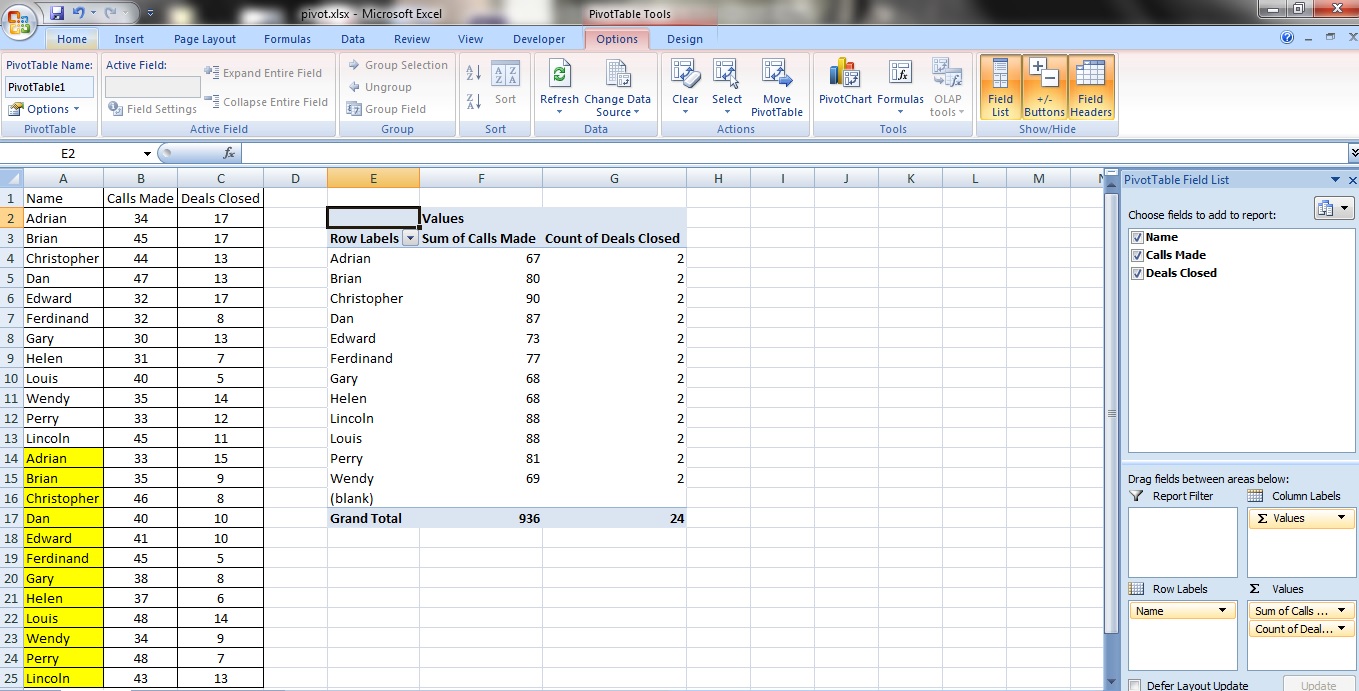
    pivot 19

    Consider this database.  Notice that the names in yellow are repeats of the names above?  Name for name.

    Applying a normal pivot table’s procedures to the data, the pivot table displays the combined values added up, WITH NO REPEATED NAMES!

    This means that the pivot table knows when a name is repeated and instead of just reproducing the data, adds it to a matching existing name.  Saves you tonnes of time!